

An Apple developer’s perspective on SwiftUI development, AI coding agents, Simulator testing, and switching between ChatGPT and Codex.
AI coding assistants have become part of my daily development workflow. When building macOS and iOS applications with Swift and SwiftUI, I increasingly use AI for everything from discussing architecture to implementing features and debugging problems.
The interesting question is no longer simply whether I should use Codex inside Xcode or ChatGPT separately.
The new ChatGPT desktop app brings Chat, Work, and Codex together, allowing developers to switch between different types of AI assistance without opening completely separate applications.
Meanwhile, Xcode provides its own integrated Codex agent.
So which approach should I use, and when should I switch?
For me, the answer depends on what I’m trying to accomplish: understand a problem, make changes to the project, or verify the result in the iOS Simulator.
1. Understanding the different AI workflows
There are now four experiences worth distinguishing.
ChatGPT Chat — Think and discuss
Chat is my first choice when I want to explore a problem before changing code.
I use it to discuss SwiftUI architecture, understand unfamiliar APIs, evaluate alternatives, and ask questions about application design.
For example:
I’m building a SwiftUI settings screen with several sections. Should I use a single Observable model or split the state into smaller components? Explain the tradeoffs before suggesting code.
With an Appshot on macOS, I can attach the frontmost Xcode window to a chat and ask about the code or error it shows.
However, ordinary Chat does not automatically have the same local execution tools as Codex.
ChatGPT Work — Research and complete broader tasks
Work is useful when the task goes beyond coding.
For example, I might want to research Apple’s current App Store requirements, compare documentation, and produce a release checklist or technical report.
Work can operate across supported files, apps, and websites, subject to permissions and the environment being used.
It’s particularly useful for development-related work that doesn’t require immediately modifying or compiling the application.
Codex in the ChatGPT desktop app — Execute coding tasks
Codex is where I switch when I want the AI to work directly on the software project.
With a local project and the appropriate permissions, Codex can inspect files, modify code, run commands, and work with development tools.
This is useful for implementing features, refactoring code, fixing build errors, writing tests, and reviewing changes across multiple files.
Codex inside Xcode — Develop and verify within the IDE
Xcode’s integrated Codex agent brings coding assistance into the environment where I already write, compile, and test applications.
The advantage isn’t exclusive access to the codebase. Standalone Codex can also work with local projects.
The advantage is integration: the source editor, agent, build tools, and Simulator are all part of the same development workflow.
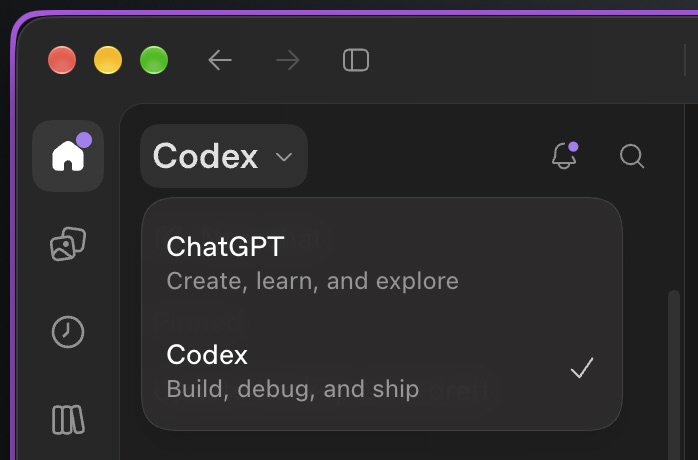
Caption: The unified ChatGPT desktop application lets developers choose ChatGPT or Codex, with Chat and Work available under ChatGPT.
[SCREENSHOT 2 — Codex agent inside Xcode]
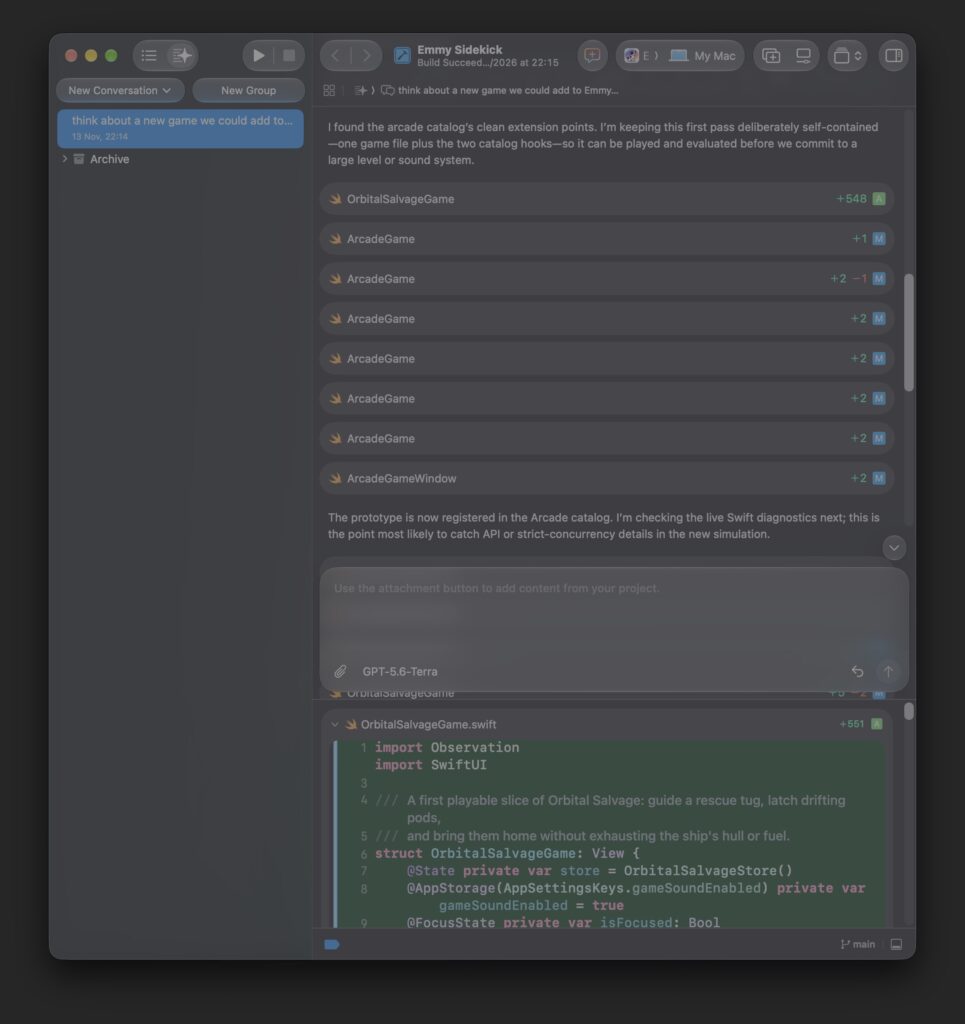
Caption: Codex working directly inside Xcode alongside a SwiftUI project.
2. When should I switch from ChatGPT to Codex?
This is probably the most useful decision to make during everyday development.
My rule is simple:
Use ChatGPT when I want to understand or decide something. Switch to Codex when I want the AI to implement, test, or verify something in the project.
Here’s how I would choose.
| Development task | Preferred mode | Why |
|---|---|---|
| Understand a Swift compiler error | Chat | Explain the underlying problem |
| Compare SwiftUI architectures | Chat | Explore alternatives before editing |
| Research an Apple API | Chat or Work | Find and evaluate documentation |
| Implement a new feature | Codex | Modify actual project files |
| Refactor multiple Swift files | Codex | Coordinate changes across the codebase |
| Fix build errors | Codex | Run builds and inspect diagnostics |
| Compile and launch the Simulator | Codex or Xcode agent | Execute development tools |
| Navigate and screenshot the Simulator | Tool-enabled Codex | Interact with the running application |
| Review a visual design decision | Chat | Discuss screenshots and alternatives |
| Write App Store release notes | Chat or Work | Produce and refine written content |
| Audit an entire project | Codex | Inspect code and run relevant checks |
| Prepare a technical blog post | Chat or Work | Research and structure the article |
This doesn’t mean ChatGPT cannot write Swift code or Codex cannot discuss architecture.
Both can do those things.
The distinction is about choosing the workflow best suited to the outcome.
3. Codex directly inside Xcode
One of the biggest advantages of using Codex directly inside Xcode is its tight integration with the development environment.
The agent works alongside the source editor, build system, and debugging tools.
However, direct access to the codebase is not exclusive to Xcode. A local Codex session in the ChatGPT desktop app can also work directly with project files.
The real difference is therefore not whether the AI can access the project, but how naturally it fits into the development process.
Advantages
- Integrated development workflow. The agent, source code, and development tools are available inside Xcode.
- Project awareness. Codex can inspect relevant files and work across multiple source files.
- Direct code changes. The agent can modify Swift code, subject to permissions.
- Build and test integration. The agent can use supported development tools to investigate compiler errors.
- Simulator workflow. I can compile the application, launch it in the Simulator, and inspect the results immediately.
- Less context switching. I can stay inside the IDE for implementation and verification.
Disadvantages
- A crowded workspace. Xcode already contains several panels, inspectors, editors, and debugging tools.
- Not ideal for every discussion. Architecture planning and documentation can feel more natural in ChatGPT.
- Agent mistakes can affect multiple files. Every change still requires review.
- Successful compilation isn’t sufficient. Visual correctness, accessibility, and device-specific behavior still need testing.
- The agent session may remain tied to Xcode. I shouldn’t assume that its conversation automatically appears in Codex Remote on my iPhone.
For rapid SwiftUI development, I currently prefer the integrated Xcode agent.
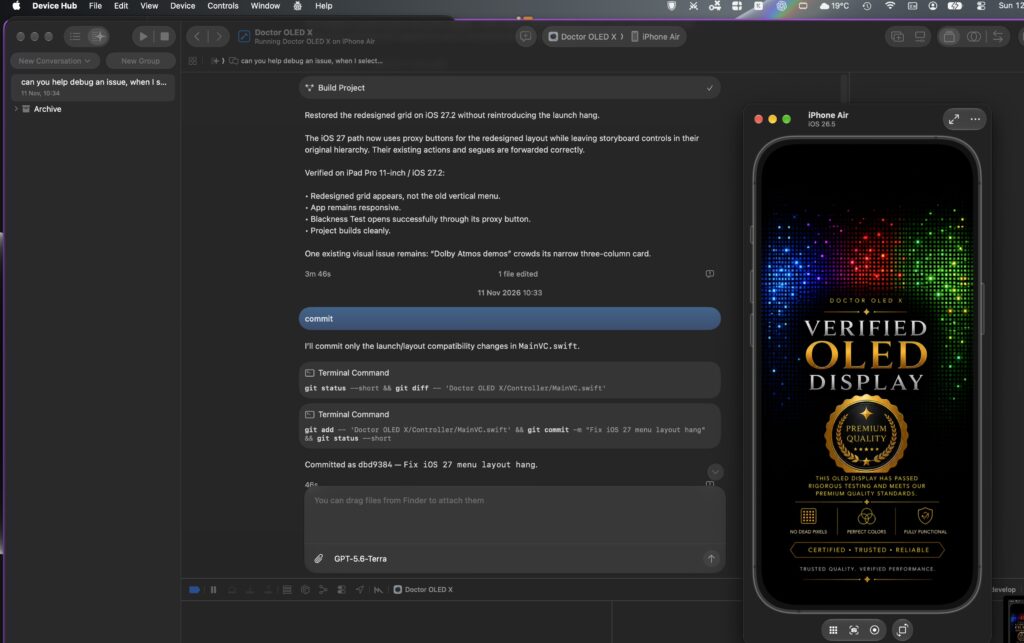
Caption: Compiling and testing a SwiftUI interface with Codex inside Xcode.
4. Codex in the ChatGPT desktop app
The standalone Codex workspace is particularly useful when I want an agent to handle a larger or more independent development task.
For example:
Review the networking layer, identify concurrency problems, implement the necessary fixes, and run the relevant tests. Avoid unrelated changes.
This is a task where I want Codex to work across several files and report its findings.
Advantages
- Direct codebase access. A local Codex session can work with project files and repositories.
- Independent development tasks. Codex can investigate problems without requiring me to focus continuously on the IDE.
- Command execution. It can run permitted development commands and tests.
- Diff review. Changes can be inspected before they are accepted.
- A separate workspace. Xcode remains available for other development activities.
- Remote supervision. Supported Codex sessions can be accessed through the ChatGPT mobile app.
Disadvantages
- Additional configuration may be necessary. Simulator interaction and visual inspection require appropriate tools.
- Different permissions. A standalone agent doesn’t automatically inherit every capability available to Xcode’s integrated agent.
- Potential conflicts. Multiple agents modifying the same project simultaneously can interfere with each other.
- Separate conversation history. Switching to ChatGPT Chat doesn’t automatically move the active Codex conversation into Chat.
I would particularly recommend standalone Codex for longer-running tasks that have clear acceptance criteria and can be verified through builds, tests, or code review.
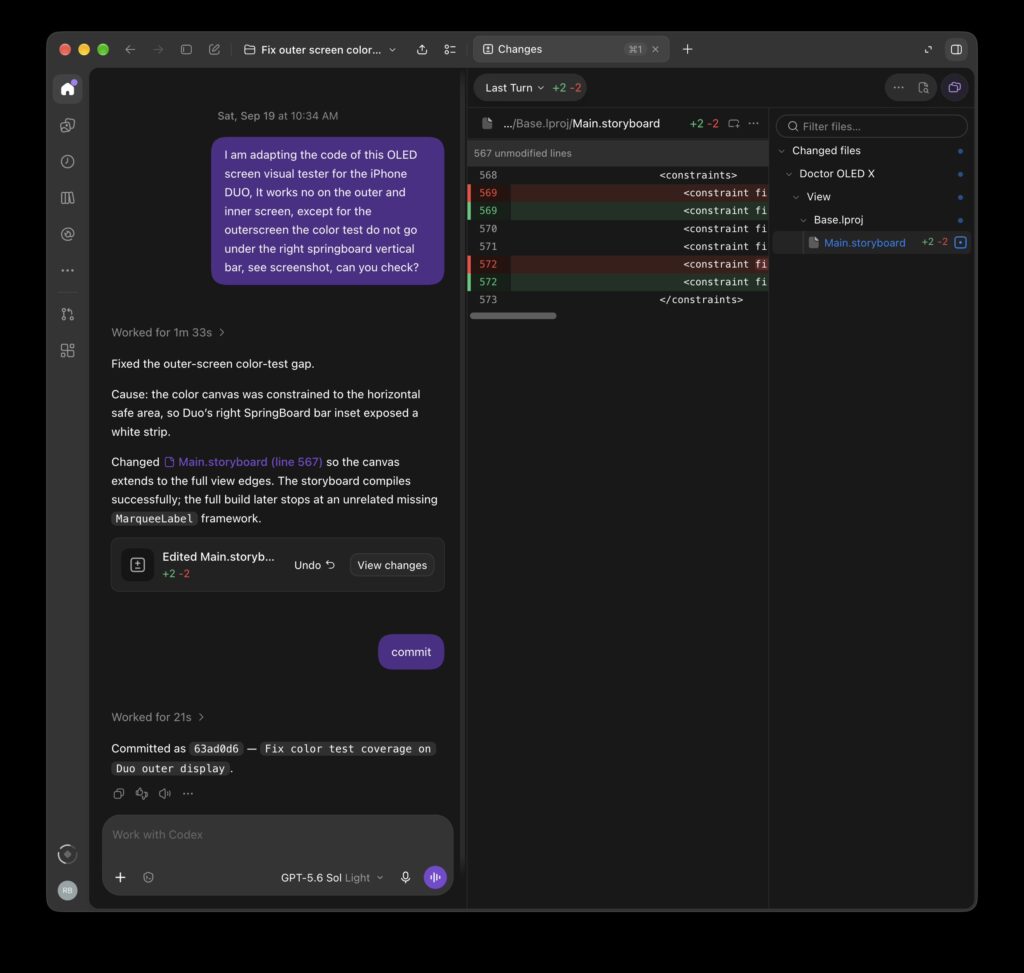
Caption: A local Codex session working on an Xcode project outside the IDE.
5. Can Codex compile, run, scroll, and screenshot an iOS application?
Yes, with a properly configured local environment and the necessary tools.
This is one of the most interesting possibilities for Apple developers.
A local Codex agent can use Xcode’s command-line tools, including xcodebuild, when command execution is available.
With additional Simulator interaction tools, it can also launch applications, navigate interfaces, perform gestures, and capture screenshots.
For example, I could ask:
Build and launch my application in an iPhone Simulator. Open the Settings screen, scroll down to the Privacy section, capture a screenshot, and check for clipped text or overlapping controls. Don’t modify the code yet.
This can create a useful visual feedback loop.
The workflow becomes:
- Codex modifies the SwiftUI implementation.
- The project is compiled.
- The application is installed and launched in the Simulator.
- The agent navigates to the requested screen.
- It scrolls to the specified location.
- A screenshot is captured and inspected.
- Codex reports any visual problems.
However, the capabilities depend on the tools available to the agent.
An Appshot gives ChatGPT a snapshot of the Xcode window. Running commands and interacting with the Simulator require a local Codex session with the relevant tools and permissions.
Using MCP to connect development tools
MCP, or Model Context Protocol, allows agents to access external tools through a standardized interface.
Apple provides an MCP interface for supported Xcode capabilities, allowing external agents to interact with the development environment.
Other simulator automation tools may also be used, depending on the configuration.
The important point is that standalone Codex can potentially perform much of the same build-and-test workflow as the integrated Xcode agent.
For me, Xcode still offers the most convenient immediate feedback loop, but the standalone approach is particularly attractive for automated testing.
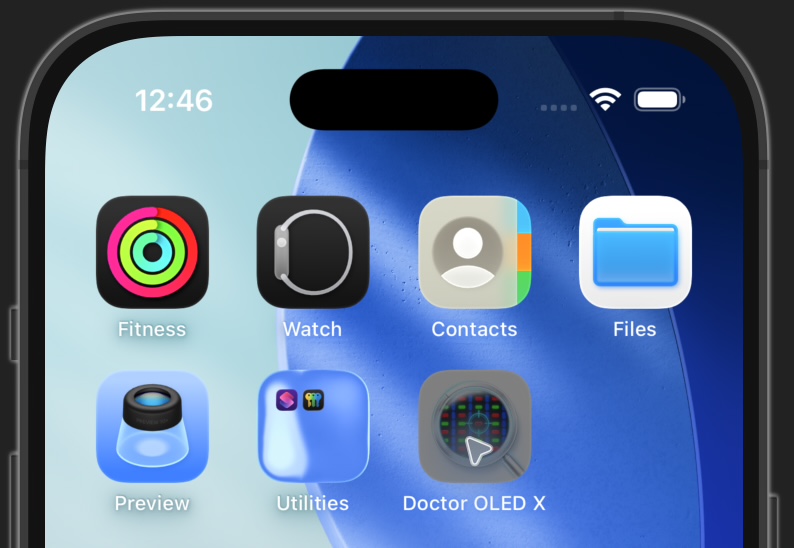
Caption: A standalone Codex agent navigating an iOS application and capturing a screenshot for visual inspection.
6. How to configure the different workflows
ChatGPT Chat with Xcode context
Use an Appshot to share the frontmost Xcode window with ChatGPT.
- Open the ChatGPT desktop app on your Mac. To check or customize the capture shortcut, go to Settings → Appshots.
- Bring the Xcode window you want to share to the front and open the relevant Swift file or build error.
- Press both Command keys at the same time, or use your configured shortcut. Complete the macOS permission setup if prompted.
- Check that the Appshot is attached to the intended chat, then ask your question.
An Appshot can include an image of the window and text that Xcode makes available. I use it for focused questions about a visible SwiftUI view or build error. OpenAI’s Appshots guide covers shortcuts and permissions.
Computer use is a separate setting for letting ChatGPT Work or Codex interact with apps. For repository-wide changes, builds, or Simulator testing, I use a local Codex session with the appropriate tools.
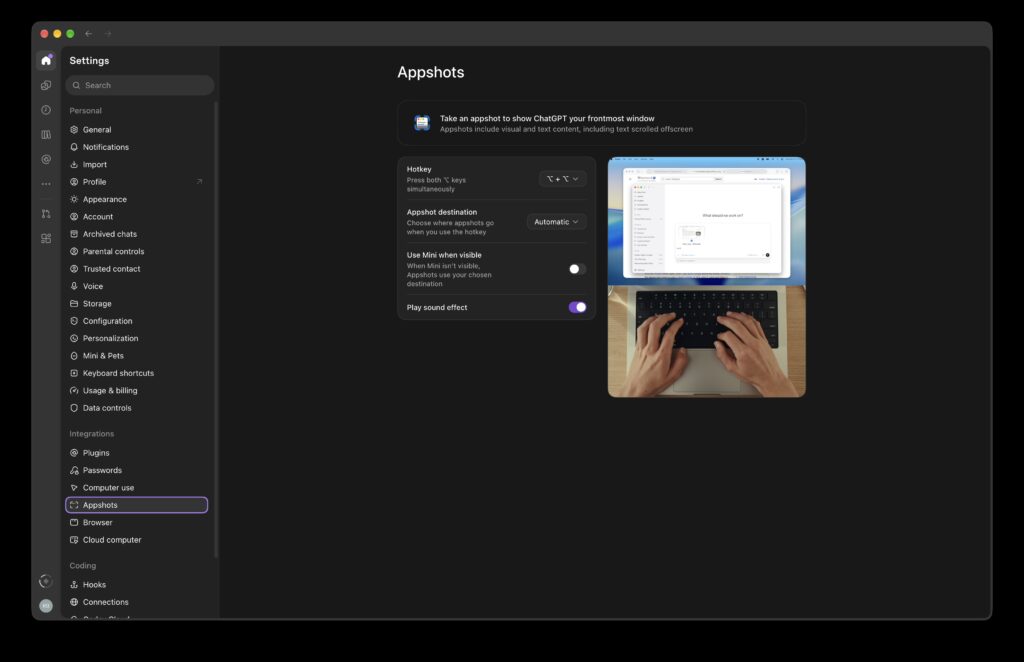
Caption: The Appshots settings let you configure how to capture the frontmost Xcode window and attach it to a chat.
Local Codex development
For coding tasks, switch to Codex using the ChatGPT desktop application’s top-left menu.
Open the local project or repository and verify that the agent has the required access.
For Apple development, check the Xcode installation, command-line tools, available simulators, and any configured MCP integrations.
Before relying on the environment, I would ask Codex to perform a simple build and report the result.
For visual testing, I would then verify that the agent can launch the Simulator, perform a gesture, and capture a screenshot.
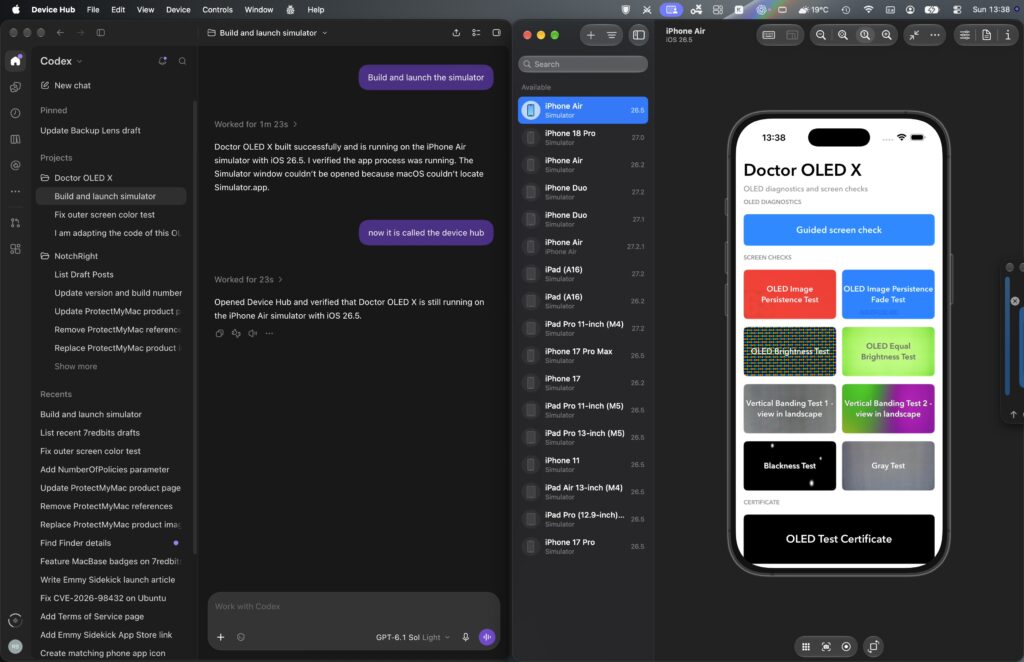
Caption: Configuring Codex with access to the project and local development tools.
7. Switching between ChatGPT and Codex: My recommended workflow
I see the ability to switch modes as a major productivity advantage.
But I wouldn’t switch for every small question. Constantly moving between conversations can introduce unnecessary overhead.
Instead, I would switch when the nature of the task changes.
Phase 1 — Think in ChatGPT
I begin by discussing the feature, architecture, or problem.
For example:
I want to add a reusable SwiftUI onboarding flow. Compare NavigationStack with a state-driven approach, and recommend the simplest maintainable solution.
The goal is to reach a clear decision before making changes.
Phase 2 — Implement in Codex
Once the approach is decided, I switch to Codex.
I provide the approved requirements and ask the agent to implement them in the project.
For example:
Implement the onboarding flow using the agreed architecture. Preserve existing navigation behavior and run the available tests.
Because Chat and Codex maintain separate histories, I make sure the Codex task includes the important requirements rather than assuming the previous discussion is automatically available.
Phase 3 — Verify in Xcode
For native Apple development, I still consider Xcode the final authority for building, debugging, and verifying the application.
I compile, run tests, and inspect the interface in the Simulator or on a real device.
If standalone Codex has the appropriate tools, I can delegate some of this verification.
Phase 4 — Return to ChatGPT when a decision is needed
If implementation reveals an architectural question, I return to ChatGPT to evaluate the alternatives.
For example:
The new onboarding implementation requires changing the existing navigation model. Compare the risks of modifying the shared router versus introducing a dedicated onboarding coordinator.
Once the decision is made, I return to Codex with explicit instructions.
Phase 5 — Use Work for documentation and release preparation
After implementation, I can use ChatGPT Work to prepare technical documentation, release notes, testing checklists, or website content.
The result is a development workflow where each mode has a clear purpose.

Caption: Switching between conversational planning and agent-driven coding in the unified desktop application.
8. Can I continue development from my iPhone?
One of the advantages of the standalone Codex environment is remote supervision.
The ChatGPT mobile app supports Codex Remote for compatible desktop sessions.
Depending on the available features, I can use my iPhone to review progress, answer questions, approve actions, and inspect results from a connected Mac.
This is particularly useful when a coding task takes longer than expected.
However, switching between ChatGPT and Codex on the desktop does not mean their conversations become interchangeable.
Chat and Work conversations have their own synchronization behavior, while Codex retains a separate history.
Supported desktop Codex sessions can be accessed through the mobile Remote interface.
An Xcode-integrated agent session should not automatically be assumed to appear there.
For me, this is an important reason to consider standalone Codex for tasks I want to supervise away from my desk.
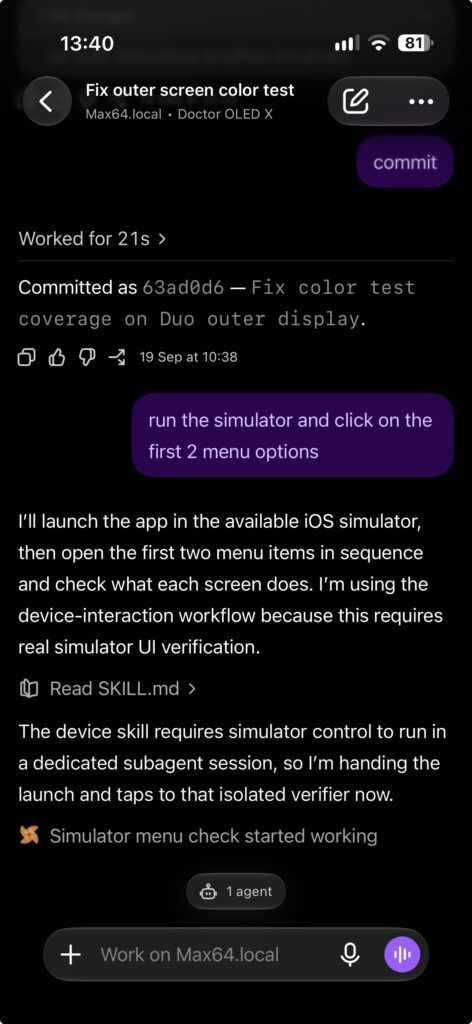
Caption: Monitoring a supported Codex development session from an iPhone.
9. What about Codex Cloud?
Codex Cloud offers another possibility: delegating repository tasks to a managed environment.
This can be useful for code reviews, repository analysis, test development, and certain refactoring jobs.
Unlike local development, cloud tasks do not necessarily depend on my Mac remaining awake.
However, cloud environments should not be assumed to have Xcode, an iOS Simulator, Apple signing certificates, or the exact development toolchain installed locally.
For native SwiftUI testing, the Mac remains essential unless an appropriate macOS build environment is explicitly provided.
I see cloud tasks as complementary to local development, not a complete replacement.
Caption: Choosing between local development and cloud-based repository tasks.
10. Comparing the workflows
| Capability | ChatGPT Chat | ChatGPT Work | Codex desktop | Codex in Xcode |
|---|---|---|---|---|
| Discuss architecture | Excellent | Yes | Yes | Yes |
| Research documentation | Yes | Strong | With tools | With tools |
| Work with local source code | Appshots or attachments | With permission | Yes | Yes |
| Modify multiple Swift files | Limited by tools | Task-dependent | Yes | Yes |
| Compile Xcode projects | Not automatically | Tool-dependent | With local tools | Integrated |
| Run iOS Simulator | Not automatically | Tool-dependent | With tools | Integrated |
| Scroll and capture screenshots | Not automatically | Tool-dependent | With interaction tools | With supported tools |
| Write release documentation | Excellent | Excellent | Possible | Possible |
| Long-running coding tasks | Not primary use | Task-dependent | Strong | Strong |
| Remote coding from iPhone | No direct local control | Not the same workflow | Supported sessions | Not guaranteed |
The main lesson is that these are different working environments, even when they’re accessible from the same application.
11. What still needs improvement?
There are several areas where I think the experience could become significantly better.
Seamless conversation handoffs. I’d like to move from a ChatGPT architecture discussion to Codex implementation without manually transferring requirements.
One continuous development session across devices. Ideally, I could start a task inside Xcode, follow it in the ChatGPT desktop app, and continue supervising it from my iPhone.
Clearer tool visibility. Developers should be able to see immediately whether an agent can build the project, control the Simulator, or inspect screenshots.
Reliable visual verification. The ability to automatically build, navigate, capture screenshots, and identify layout problems could become one of the most valuable parts of AI-assisted SwiftUI development.
Better coordination between agents. Running multiple agents on the same repository requires clear ownership of changes, isolated workspaces, and reliable review processes.
These are workflow improvements rather than purely code-generation improvements.
12. Final verdict
For me, the best workflow isn’t about choosing ChatGPT or Codex permanently.
It’s about switching at the right moment.
I use ChatGPT Chat when I need to think, compare alternatives, or understand a problem.
I use ChatGPT Work when I need broader research or a finished development-related deliverable.
I use Codex when I want the AI to execute work on the actual project, including implementation, refactoring, testing, and debugging.
And I currently prefer Codex inside Xcode when I want the shortest possible feedback loop between writing SwiftUI code, compiling, and checking the result in the Simulator.
The unified ChatGPT desktop app makes these workflows easier to access, but it doesn’t automatically eliminate the boundaries between their conversations, permissions, and development tools.
For Apple developers, the real opportunity is combining the strengths of each environment.
The future of AI-assisted development isn’t simply an assistant that writes better Swift code.
It’s an assistant that can help design a feature, implement it, compile the application, navigate the interface, inspect the result, and continue the work across devices.
That’s the workflow I’m working toward.
7 Red Bits — Developing applications for the Apple ecosystem.