


You have a project brief in Pages, a budget in Numbers, and a status deck in Keynote. With the 16.0 Creator Studio updates, an AI agent running on your Mac can connect to each app through Apple’s built-in Model Context Protocol (MCP) support. You can ask it to read a document, check a number, or apply a specific edit in the app. Apple’s announcement
Turn on MCP in Pages, Numbers, or Keynote
You’ll need macOS 27 or later, version 16.0 of Pages, Numbers, or Keynote, and an active Apple Creator Studio subscription. Launch the Creator Studio version of the app you want to connect and open a sample document, spreadsheet, or presentation. Pages 16.0 release notes
- With the app active, click its name in the macOS menu bar at the top of the screen and choose Settings…. The menu path is Pages → Settings…, Numbers → Settings…, or Keynote → Settings…. You can also hold Command and press the comma key. In Numbers, select General and look for the MCP section.
- Select the checkbox next to Allow external assistants to connect to [app]. In Numbers, it reads Allow external assistants to connect to Numbers. If the MCP access dialog appears, review it and click Turn On.
If you see the Apple Creator Studio subscription offer instead, the app hasn’t detected an active subscription. You’ll need one before you can turn on MCP.
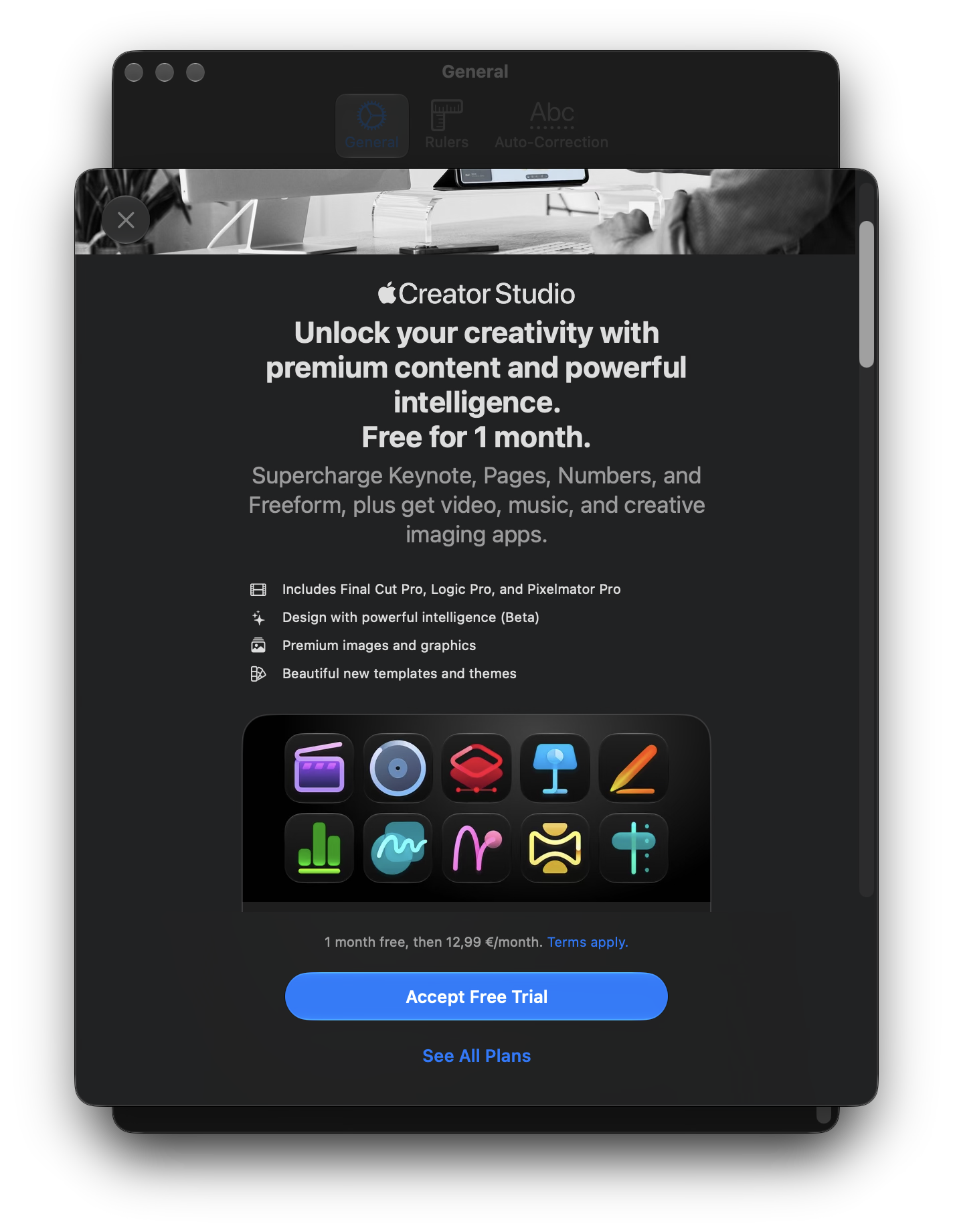
Numbers displays this offer when you select the MCP checkbox without an active Apple Creator Studio subscription. - Once MCP is on, use Copy URL to get the app’s server address. Repeat in each additional app you want to connect and use the URL from that app.
Connect a local MCP client
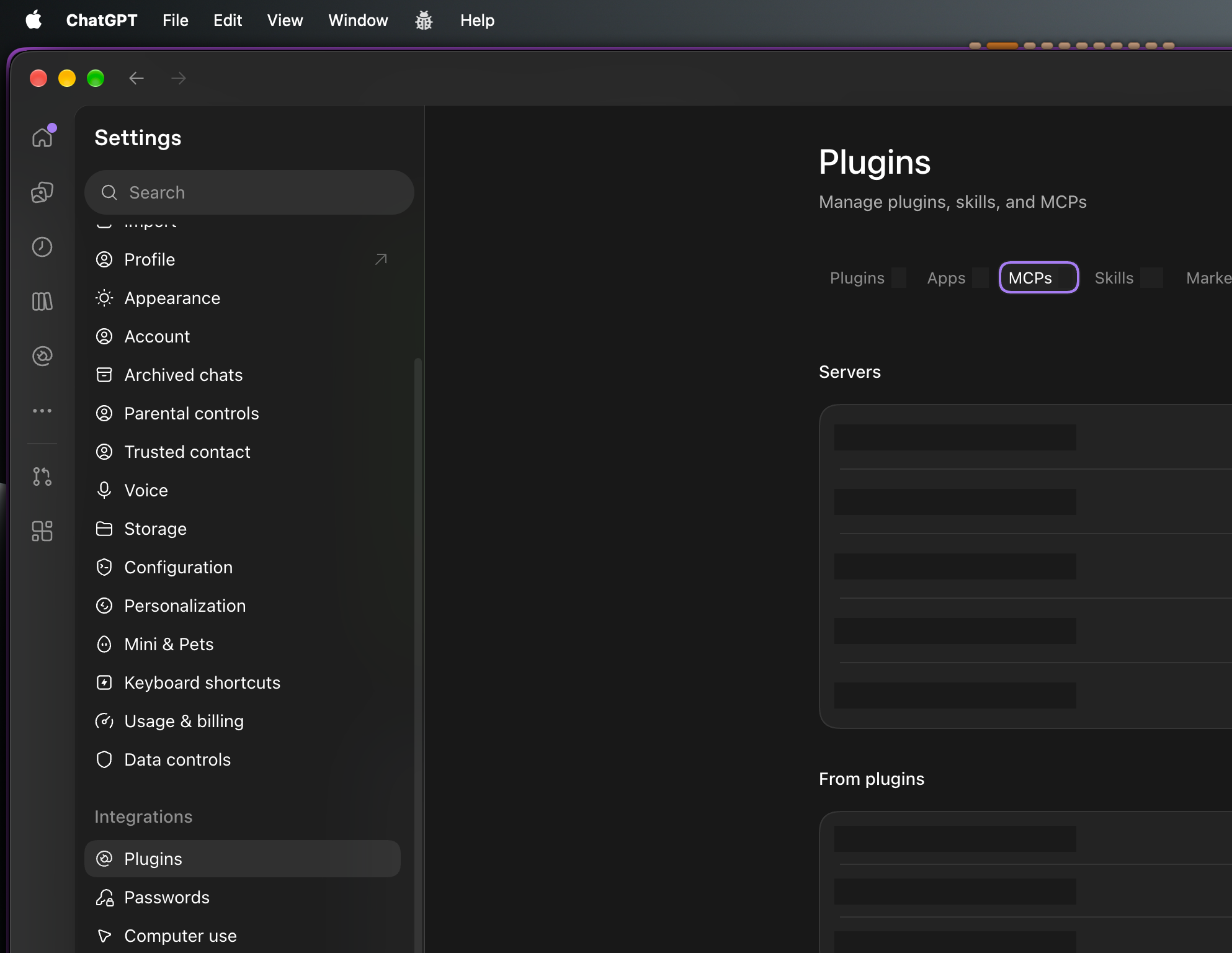
In ChatGPT for Mac, open ChatGPT → Settings… from the macOS menu bar. In the Settings sidebar, under Integrations, select Plugins. Open the MCPs tab and add a server in the Servers section. Give the server a recognizable name such as apple-pages, select Streamable HTTP, and paste the URL you copied from Pages. Save and restart. Add separate entries for Numbers and Keynote if you use them. In a local Codex chat, type /mcp to see the connected servers. OpenAI’s MCP setup guide
When the client connects, the Apple app asks you to approve it. Choose Allow for the client you recognize, then confirm with Touch ID or your Mac password. Apple limits connections to clients running on the same Mac. An approved client gets access to open documents in that app, so close unrelated files before you connect.
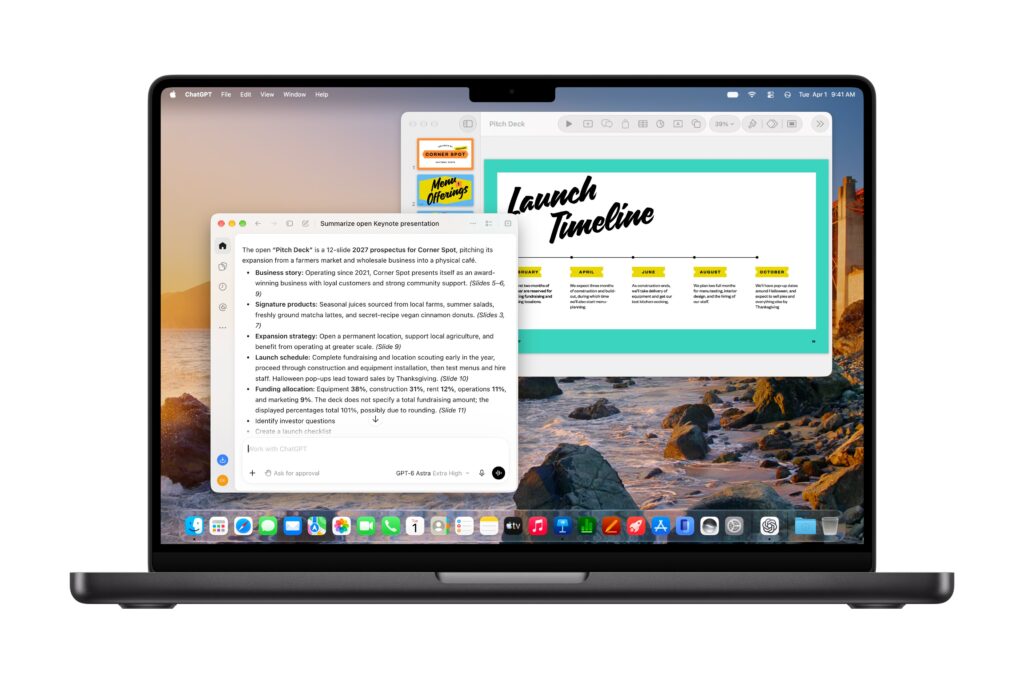
Try a small task in each app
Open a sample file and start with a read request. Once the agent identifies the right document, ask it to make one change you can verify in the app.
Pages — tighten a project brief
Use Pages MCP to read the open document “Launch Brief.” Suggest a shorter opening paragraph and preserve the dates and commitments. Show me the proposed paragraph before editing.
Once you approve the wording, ask the agent to replace only the opening paragraph. Check the edited paragraph and its formatting in Pages.
Numbers — check a budget
Use Numbers MCP to inspect the “Budget” table in “Launch Budget.” Report the total in the Actual column and the difference from Planned. Include the rows you used and leave the spreadsheet unchanged.
Compare the result with the sheet’s totals and check whether subtotals were counted twice. For a write test, use a copy and ask the agent to label one empty column Variance.
Keynote — refine a status slide
Use Keynote MCP to read slide 3 of “Launch Update.” Suggest a title under eight words that reflects the slide’s main point. After I approve it, update only that title.
Check the new title in Keynote at presentation size. If it wraps awkwardly, ask for a shorter version.
Review connections when you finish
Use Show Connections in the app’s MCP settings to inspect active connections and disconnect a client. If a server fails to appear in your agent, check that the correct app is open, that MCP is enabled there, and that you used the URL from that app. Look for an approval dialog in the Apple app when reconnecting.