

Backups, security, and peace of mind
ProtectMyMac brings backup confidence, macOS security signals, storage insights, and everyday maintenance together in one dashboard.
US$2.99 one-time purchase. Applicable tax is included. Terms of service · Privacy notice · Refund policy
See what Time Machine is doing, understand which protections need your attention, and practise restoring a file before you need to recover something important.
Keep an eye on Time Machine
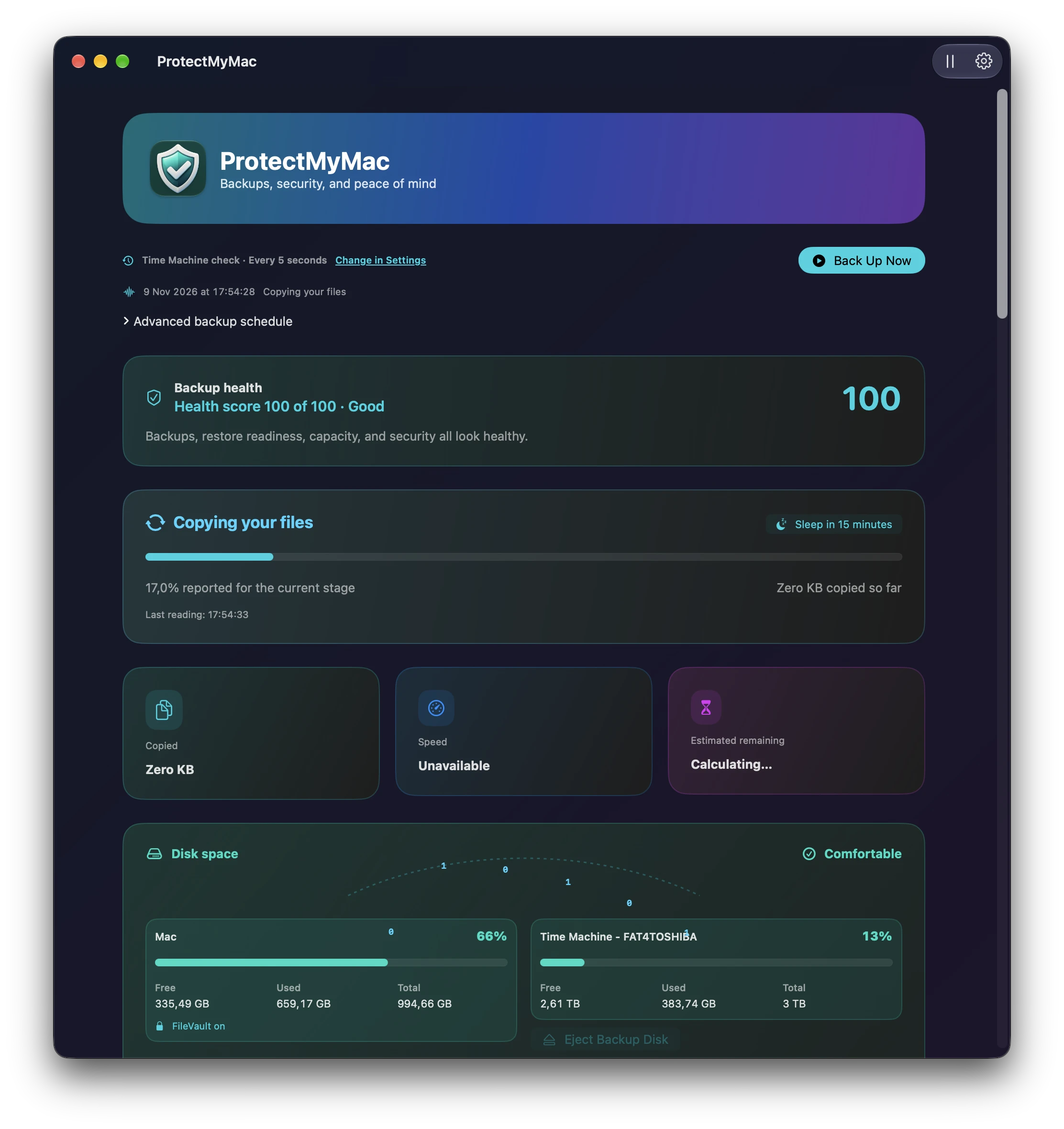
The dashboard shows whether Time Machine is preparing, copying, cleaning up, or waiting for the next backup. When macOS reports enough information, you can follow copied data, transfer speed, and estimated time remaining. Backup history records successful and failed backups observed while ProtectMyMac is running, with a chart to help you spot patterns.
Back Up Now asks Time Machine to start a backup. An advanced schedule can request backups at your chosen interval through a user LaunchAgent, while leaving macOS automatic backup settings unchanged. macOS decides when to honour those requests and can defer or skip them when a backup is already running. If you are stepping away, Sleep in 15 minutes schedules a one-time sleep that you can cancel from the status card.
Build confidence with a Restore Drill
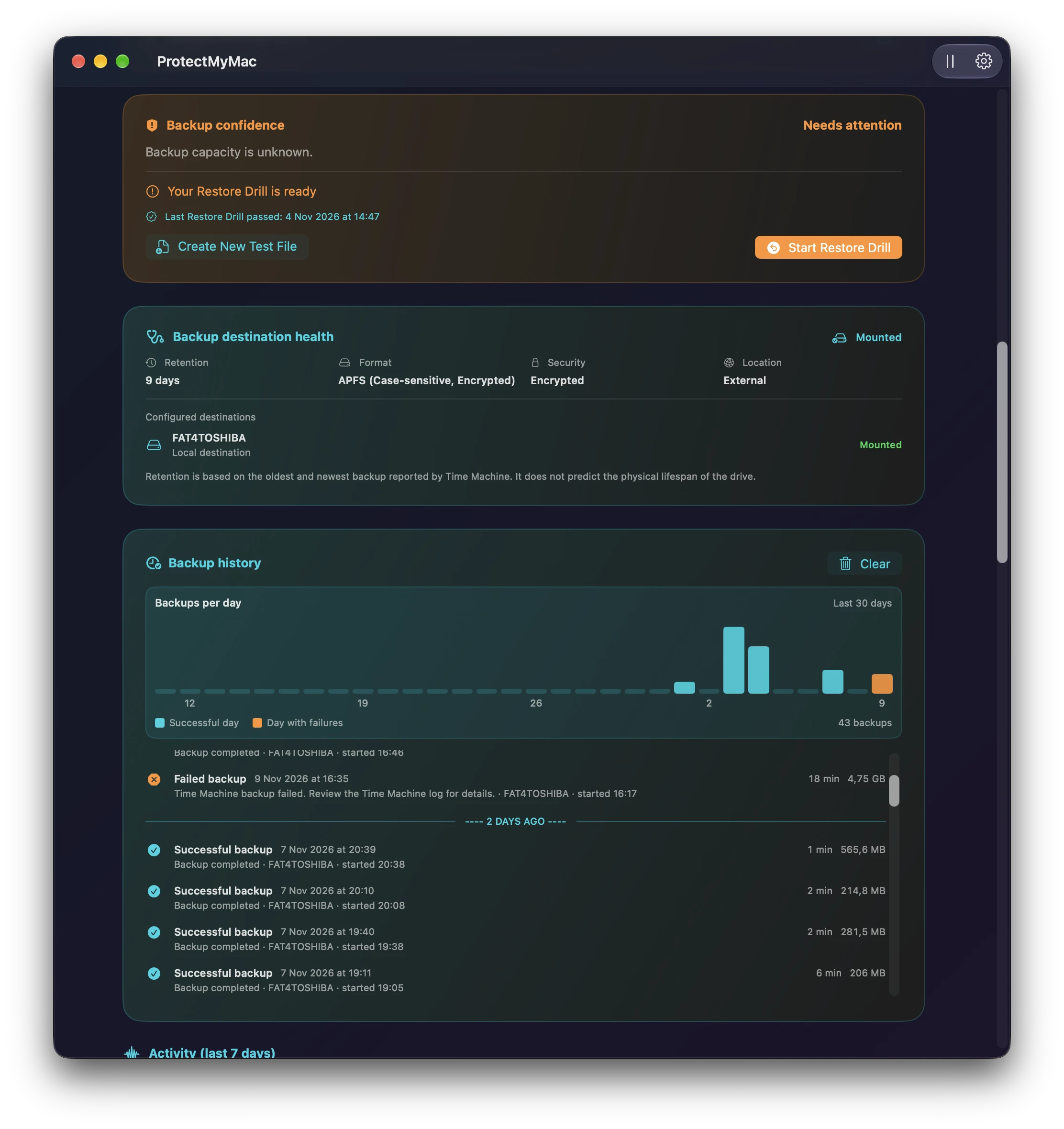
A backup becomes more reassuring when you have tested recovery. ProtectMyMac creates a harmless ProtectMyMac Restore Test.txt marker in Documents. After it observes a successful backup made after that marker was created, it schedules a Restore Drill for one month later.
Starting a drill asks for confirmation before permanently removing only the dedicated marker. You then restore it to Documents using Time Machine, and ProtectMyMac checks that the expected marker has returned. You can also create a new test marker from the Backup confidence card.
The confidence card combines backup freshness, available capacity, and recorded Restore Drill results. A successful backup observed after marker creation is the readiness signal; Time Machine does not provide a supported way for ProtectMyMac to confirm in advance that a specific file is present in a backup.
See backup health at a glance
A health score from 0 to 100 summarises backup freshness, Restore Drills, destination capacity, and security warnings. The menu bar shows the score and its main reasons: Good at 85 or above, Needs attention from 60 to 84, and At risk below 60. Optional weekly notifications repeat the score and the items worth reviewing.
Destination health shows available information about backup retention, format, security, and location. Retention describes the range of backups reported by Time Machine; it does not predict a drive’s physical lifespan. Network destination capacity may remain unavailable until macOS mounts the volume.
Understand your Mac’s security settings
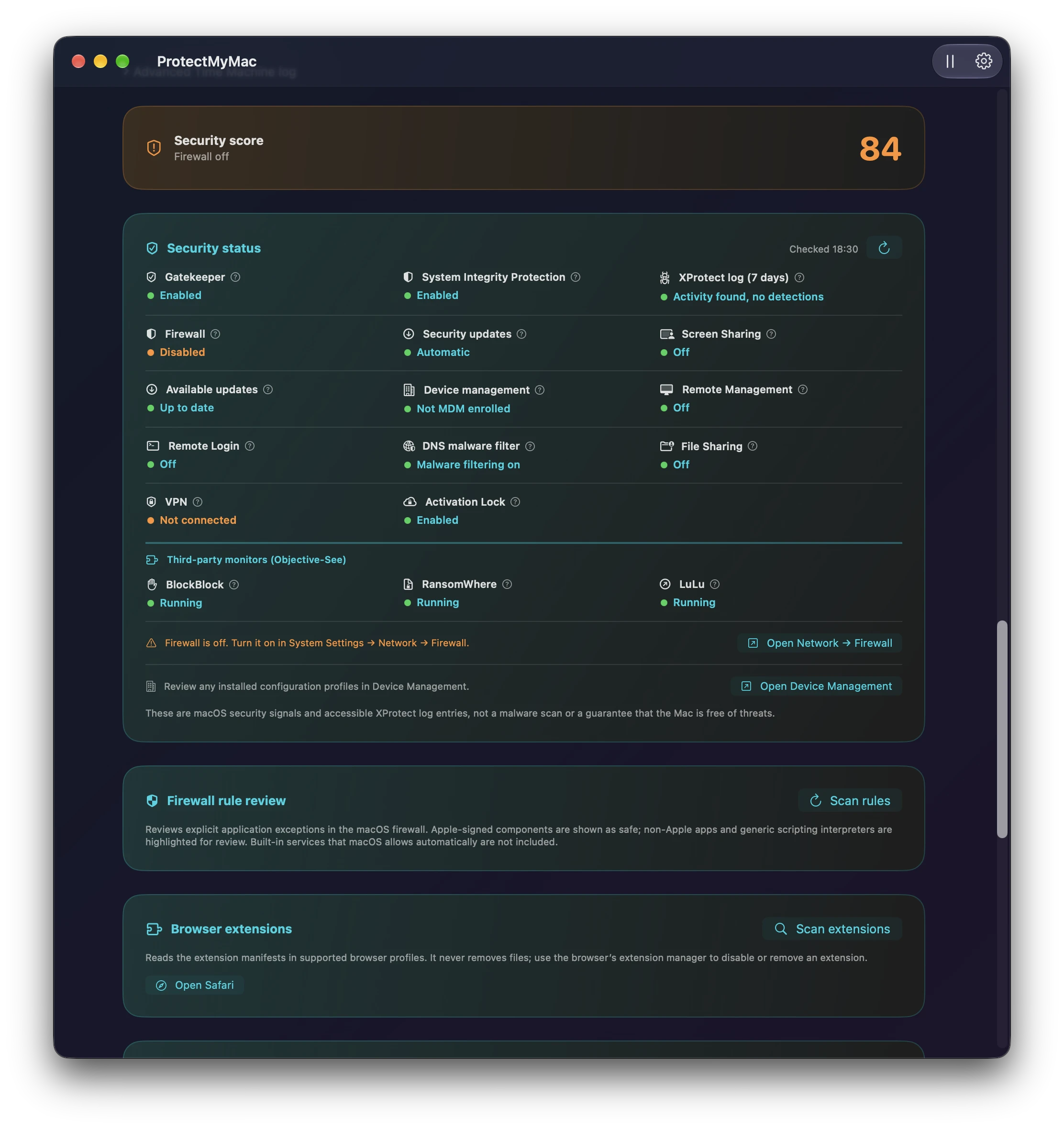
ProtectMyMac gathers the security signals macOS makes available, including Gatekeeper, System Integrity Protection, accessible XProtect activity, the built-in firewall and available Stealth Mode status, automatic security updates, cached available updates, device management, and remote-access and sharing services.
Clear status indicators and explanations help you decide what to review. Settings shortcuts take you to the relevant macOS controls, and ProtectMyMac checks security status again 30 seconds after you open a shortcut. A separate security score summarises the available signals from 0 to 100.
The dashboard also checks for Cloudflare’s malware-filtering DNS resolvers and whether Objective-See’s BlockBlock, RansomWhere, and LuLu are installed and running. ProtectMyMac links to these independent tools so you can install and configure them separately. The dashboard also shows whether macOS reports a VPN as connected or connecting. A connected VPN can supply its own DNS resolver, so the DNS check becomes informational. VPN status does not affect either score.
Firewall rule review highlights explicit app exceptions for non-Apple software and general-purpose interpreters such as Python and Ruby, even when Apple signed them. Review the exceptions in context. ProtectMyMac leaves firewall rules in place.
These are configuration signals and accessible log entries, not a malware scan or a guarantee that your Mac is free of threats. Work or school device management and intentionally enabled sharing services may be expected. An XProtect entry is a reason to investigate, rather than proof of an infection.
Review apps, browser extensions, and connections
- Browser extensions: inspect extension manifests in accessible Chrome, Edge, Brave, Arc, and Firefox profiles, including declared permissions and enabled state. Broad website access is highlighted for review. Open the browser’s manager to disable or remove extensions; Safari extensions are reviewed in Safari Settings. Leftover extension folders for browsers no longer installed can be removed after confirmation.
- Running apps: See where apps running under your account were launched from and whether macOS can verify their signatures. The review highlights apps running from Downloads or temporary folders and apps with unverifiable signatures.
- App trust scan: Check installed apps against Gatekeeper and review non-Apple apps that Gatekeeper rejects or cannot verify. Locally built and older apps can appear here too. Reveal an app in Finder or move its bundle to Trash after confirmation.
- Network connection snapshot: review TCP connections macOS allows the app to inspect. The snapshot is read-only, may omit system-owned listeners, and does not block or close connections.
- Startup items: check user LaunchAgents for broken, empty, or unreadable registrations. After confirmation, an identified item can be unloaded and its plist moved to Trash. Other login and background items remain managed in System Settings.
Keep storage and maintenance in view
Compare your Mac’s used space with the mounted Time Machine destination, review folder and application sizes, and see reported storage changes. Unmount Backup Disk uses the destination reported by macOS and is disabled while a backup is running.
Unused application scanning lists apps with reliable usage dates at least three months old, ordered with the longest-unused first. After confirmation, closed eligible apps can be moved to Trash individually or together; running apps are skipped. Separate documents, settings, and Application Support data remain in place.
Cleanup tools let you review old user caches and temporary files before removal. Developer cache review targets old Xcode, simulator, Android Studio, and Gradle caches while preserving projects, archives, SDKs, signing files, and simulator devices.
A clearer picture of your Mac
ProtectMyMac brings the details that matter into one place, with explanations and practical next steps. Time Machine performs the backups; ProtectMyMac observes their status, can request backups, and helps you review backup confidence. Periodically restore test files to confirm that recovery works for you.