

Keeping an extra copy of your personal files is useful. Remembering to make that copy is the part that is easy to forget.
ProtectMyMac 1.1 adds scheduled Personal Files backups. Choose what to copy, where to save it, and how often to run it. ProtectMyMac saves that configuration and asks macOS to launch the backup on schedule—even when the app is not already open.
Set up your automatic copies
The new Automatic copies control lives in Personal Files Backup, alongside your folder selection and backup type.
- Choose your folders. Select the personal folders you want to copy, or choose your entire Home folder.
- Pick a backup type. Choose New Folder, ZIP Archive, or Sync Mirror.
- Review your exclusions. Set the available exclusions to suit the files you want to keep.
- Select an external destination. ProtectMyMac saves access to that destination for scheduled runs.
- Choose an Automatic copies interval. macOS is then asked to launch the saved backup configuration at that interval.
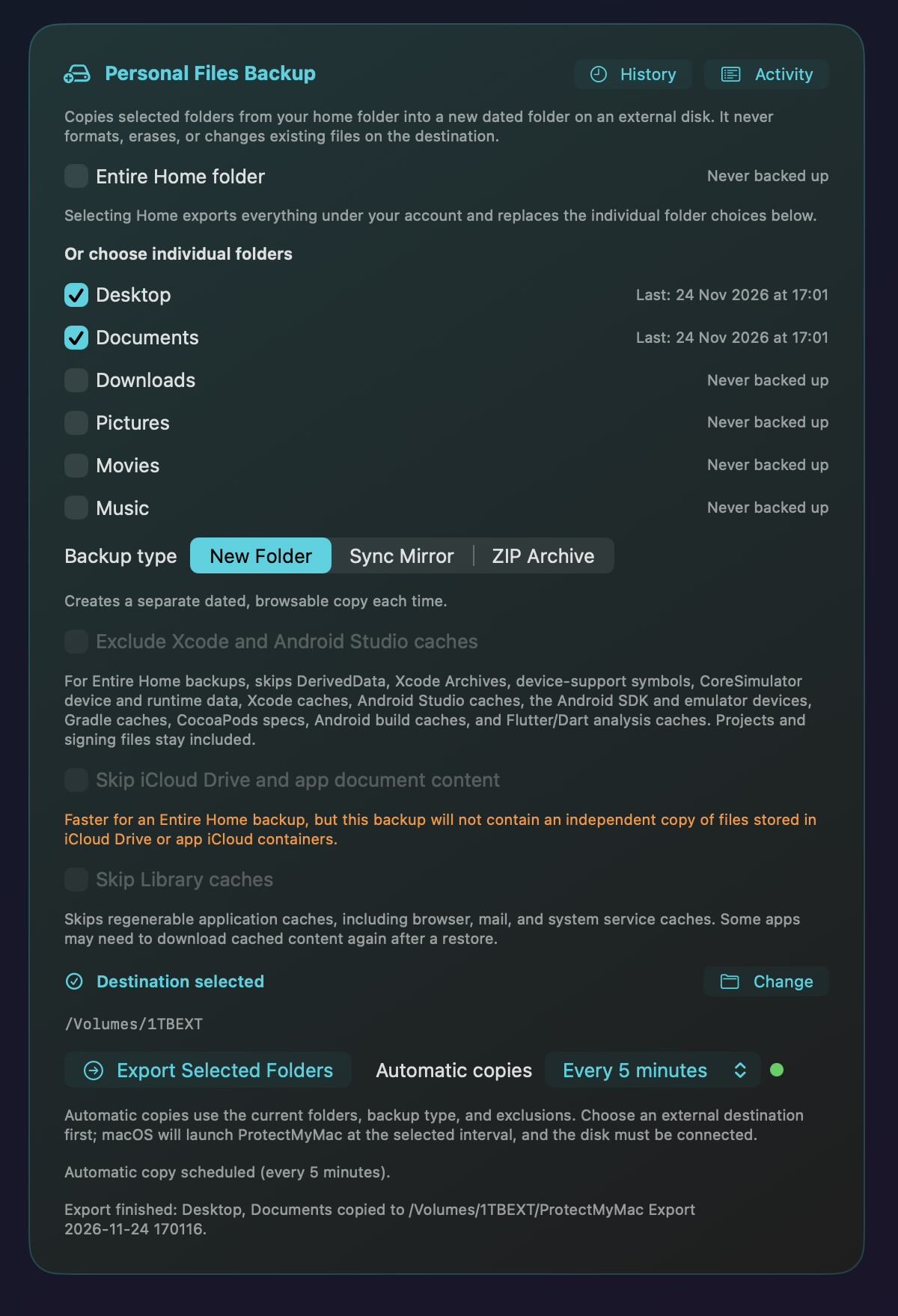
Three ways to keep your copies
Each scheduled run uses your selected backup type:
- New Folder creates a separate dated, browsable copy each time.
- ZIP Archive creates a dated archive.
- Sync Mirror updates its dedicated mirror folder.
For example, you can select Desktop and Documents, choose New Folder, and set an interval. Each automatic run then creates a separate dated copy of those folders on your external disk.
Your schedule follows your current selection
You can change your mind without rebuilding the schedule. Changing the selected folders, backup type, or exclusions updates the saved configuration. Future automatic runs use those current choices.
To stop future runs, turn Automatic copies off.
Keep the disk connected—and check the activity
Your destination disk needs to be connected at the scheduled time. The schedule saves you from having to open the app and start each copy yourself, but the external destination still needs to be available.
The Personal Files Backup Activity view records scheduled starts, completed copies, and destination-access problems. It gives you a place to check what happened and spot a destination that needs attention.
A companion to Time Machine
Scheduled Personal Files backups are for recovering your files. They do not replace Time Machine’s versioned backups or create a bootable macOS backup.
Use them as an additional copy of the folders that matter to you, alongside your wider backup routine.
Try ProtectMyMac 1.1
Already using ProtectMyMac? Choose ProtectMyMac → Check for Updates… in the menu bar, then open Personal Files Backup to set up Automatic copies.
New to the app? Discover ProtectMyMac for backup confidence, macOS security signals, and storage insights in one dashboard.