

Safari can now give a coding agent a view of how your website actually behaves in Apple’s browser. Safari 27 includes an MCP server, so an MCP-compatible coding agent can inspect a page, gather evidence, and help you improve the result for Safari users.
If you have been passing screenshots and console errors back and forth, this gives the agent a more direct way to investigate. Apple describes the feature in its Safari 27 release overview.
What can an agent do with Safari MCP?
MCP—Model Context Protocol—is the connection between the agent and Safari’s developer tools. With the server connected, an agent can examine rendered page content, inspect network activity and console messages, take screenshots, and interact with the page.
That makes it useful for checking layouts, investigating slow resources, and testing buttons or forms. The coding agent still needs separate access to your project files to make lasting code changes. Browser inspection alone does not publish an improved website.
Apple’s Safari MCP introduction explains the available tools and debugging workflow.
1. Enable the Safari setting
You need Safari 27 or later on your Mac for the built-in server covered here. Check your version under Safari → About Safari.
- Open Safari → Settings → Advanced.
- Enable Show features for web developers if the Developer pane is missing.
- Open the Developer pane.
- Enable Allow remote automation and external agents.
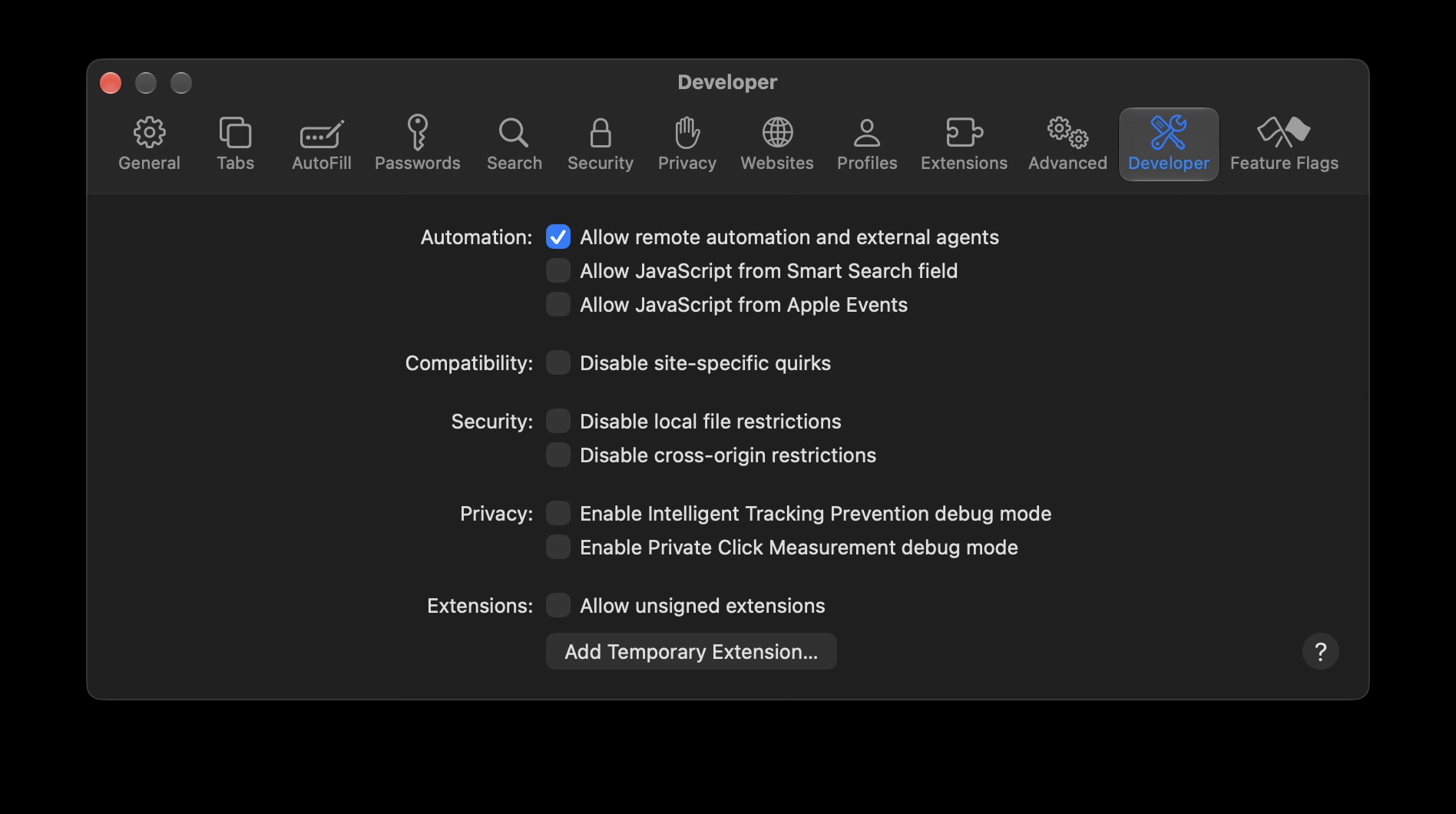
The screenshot shows the relevant checkbox. Apple’s setup does not require enabling JavaScript from Apple Events or disabling cross-origin or local-file restrictions.
2. Connect your coding agent
Register Safari’s built-in server with your preferred MCP-compatible coding agent. Here are setup examples for both Codex and Claude Code; you only need the command for the client you use.
Codex
With the Codex CLI installed, run this command in Terminal:
codex mcp add safari-mcp -- "/usr/bin/safaridriver" --mcpIf Terminal says “command not found: codex”
The short command requires Terminal to be able to find the Codex executable. On my Mac, I could use the copy bundled inside the installed ChatGPT app directly:
"/Applications/ChatGPT.app/Contents/Resources/codex-cli/CodexCLI.app/Contents/MacOS/codex" mcp add safari-mcp -- "/usr/bin/safaridriver" --mcpThis worked on my installation and returned:
Added global MCP server 'safari-mcp'.That confirms the server configuration was added. You can then try the first Safari navigation prompt below to test the browser connection. The bundled executable’s location depends on your app installation and may change between versions; use this exact path only if it exists on your Mac.
Claude Code
With Claude Code installed, run this command in Terminal:
claude mcp add safari-mcp -- "/usr/bin/safaridriver" --mcpThe Safari checkbox enables the browser side of the connection. The command registers the server with your chosen client. Other MCP-compatible clients can use /usr/bin/safaridriver as the command with --mcp as its argument, using their own configuration interface.
Then start with a simple request:
Use Safari MCP to open https://example.com/ and tell me whether the page loads correctly. Check the console and take a screenshot. Only inspect the public page.
Apple documents an agent-controlled Safari window with a banner below its toolbar. Begin by asking the agent to navigate to a URL: Apple notes that tab-management requests made before the first navigation can fail. See Connecting an AI agent to Safari for the official setup.
3. Create an “agent” profile for separate test browsing
A dedicated profile is useful for organising manual test browsing and keeping test-site sessions separate from everyday browsing:
- Open Safari → Settings → Profiles.
- Choose Start Using Profiles, or click + if profiles already exist.
- Name the profile agent. Give it a distinctive colour and symbol, such as the purple hammer shown below.
- Create a separate favourites folder and leave unnecessary extensions off.
- Use File → New agent Window for manual testing. Sign in only to the test accounts you need.
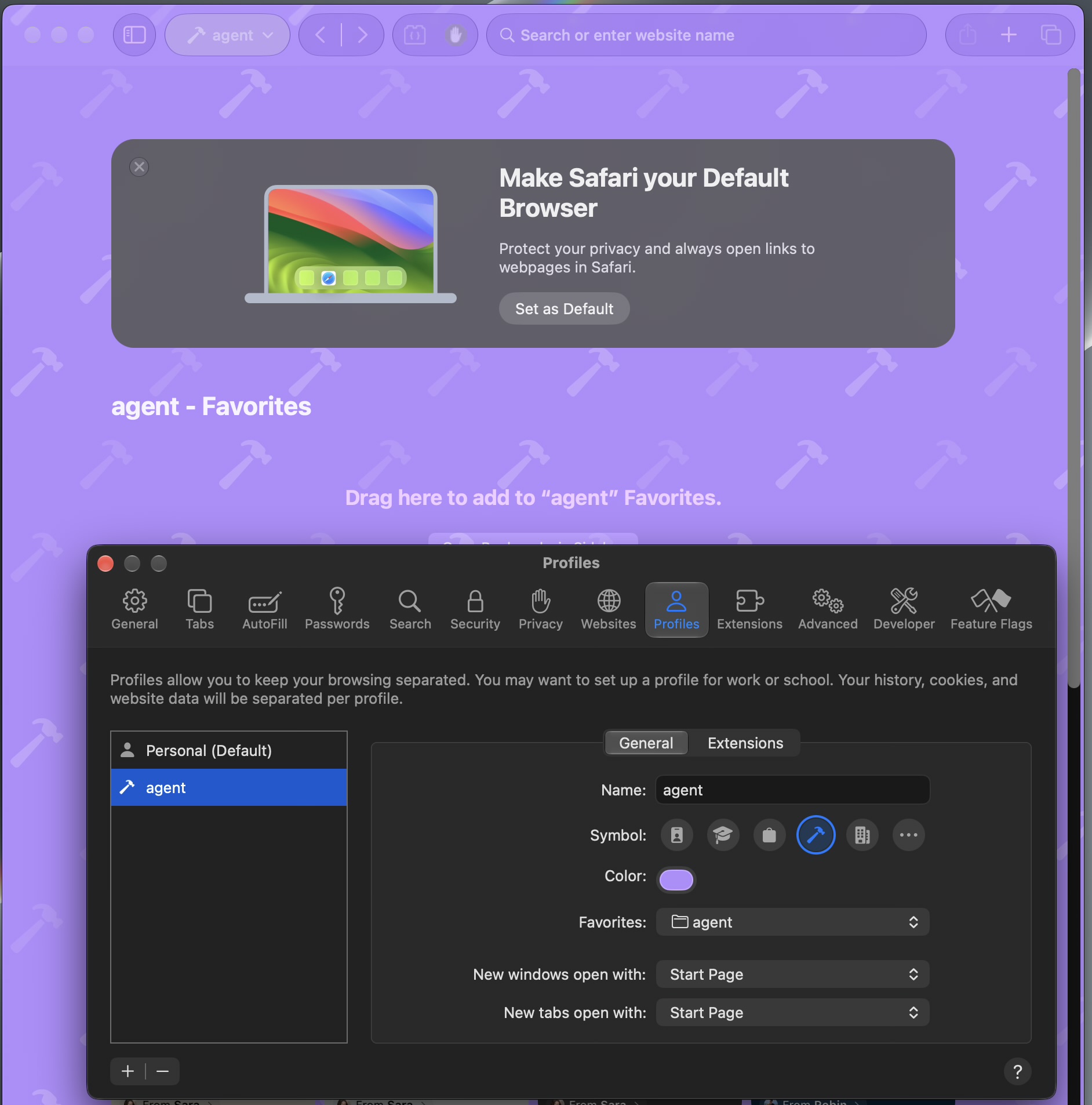
Profiles separate history, cookies, and website data. That reduces the chance of manually testing a site while already signed in to a personal or administrator account. Passwords and AutoFill information remain shared between profiles, so a profile provides limited separation. Apple explains these boundaries in Use profiles in Safari on Mac.
Creating this profile does not automatically assign it to Safari MCP. Apple’s native server opens its own agent-controlled window; its documented setup provides no named-profile selection step. Confirm which window and session the agent is using. The separate profile remains useful for your manual checks, or for another browser integration that explicitly supports selecting a profile.
Apple says the native server cannot access personal Safari information such as AutoFill or unrelated browsing activity. Captured page data goes to your agent, and its subsequent handling depends on the agent and model. Use public pages or staging accounts with limited permissions, and keep private customer data out of test pages.
Try it for fun: watch Codex use Safari
You do not need a website project to give this a try. Once Safari MCP is connected, put the Codex and Safari windows side by side, keeping the agent-controlled Safari window visible. It is fun to watch the pages change as Codex searches, follows links, and checks information, while reading its progress in the window next to it.
Here is a task you can try. Replace Castelo Branco with your own town if you prefer:
Using Safari specifically, find a rainy-day activity for a family with two adults and two children aged 4 and 7 near Castelo Branco, Portugal. Verify opening hours, total family admission cost, and driving directions from the city centre. Use official sources where possible and include links. Record missing information, confusing navigation, and anything that fails. Do not make a booking.
In my test, Codex found Centro Ciência Viva da Floresta in Moitas, checked its admission and exhibition-session information, opened the reservation form without submitting it, and checked the drive from Praça do Município in Google Maps. These screenshots show Safari during that test.
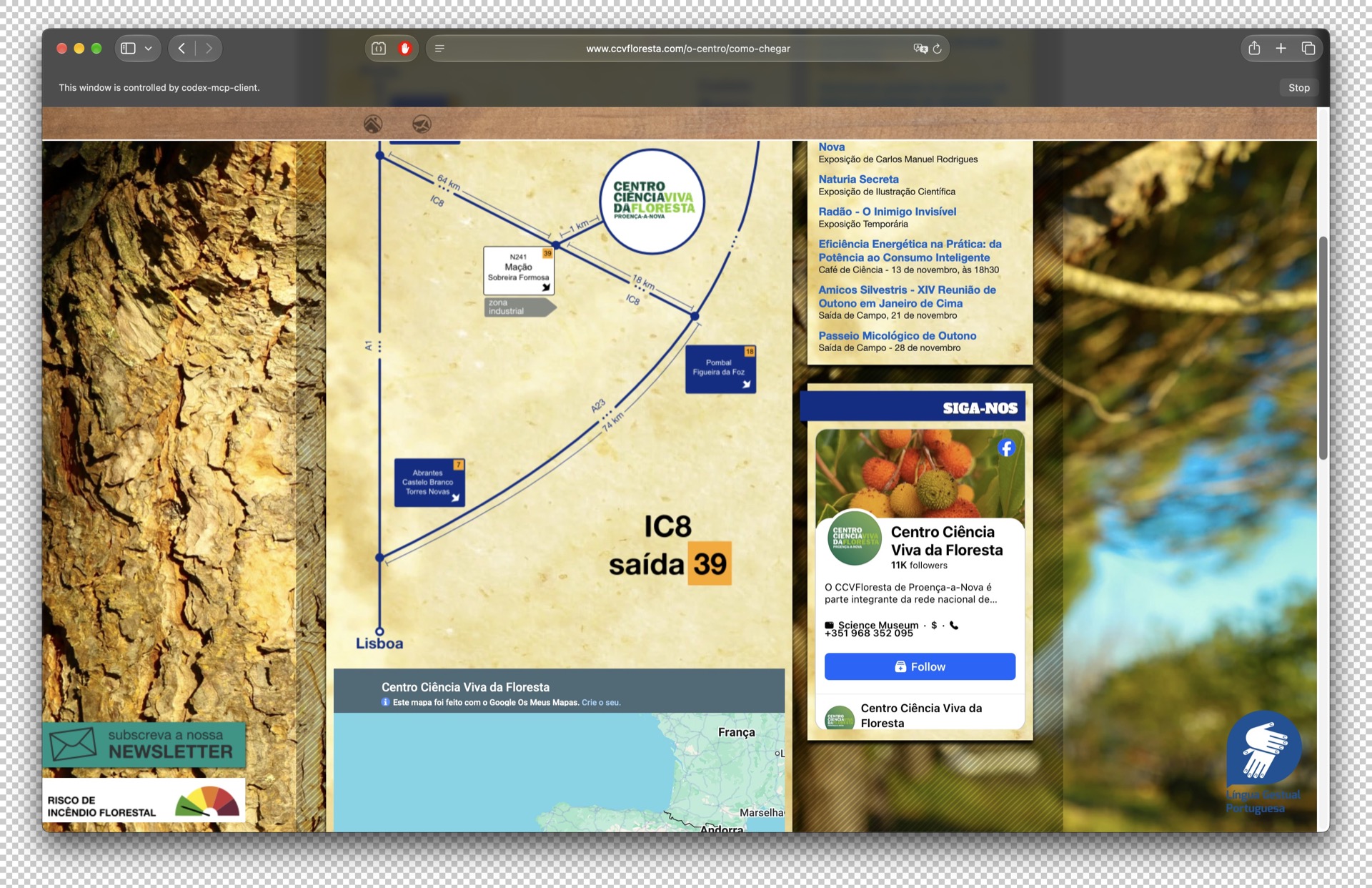
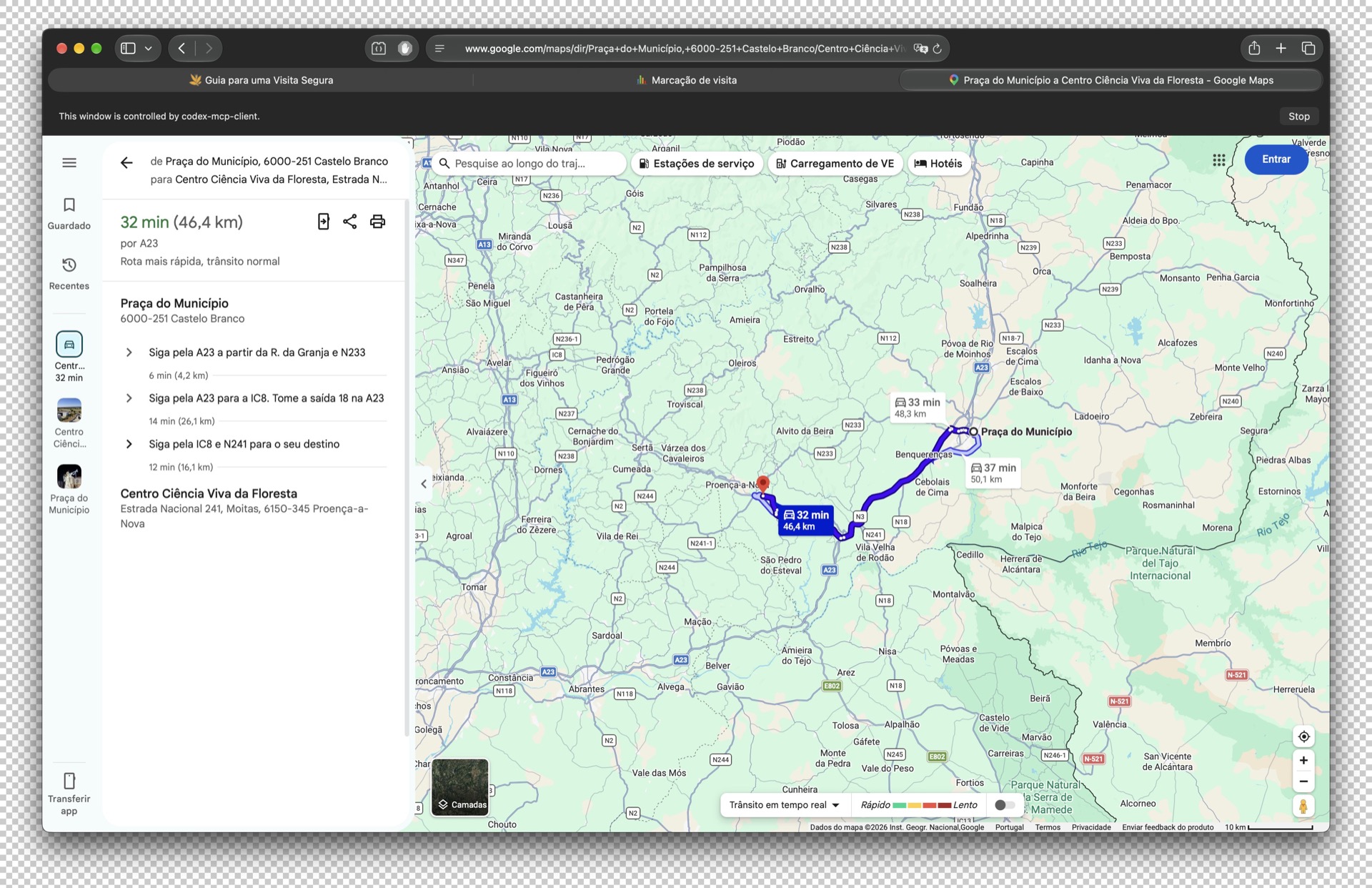
Look for the banner “This window is controlled by codex-mcp-client.” below Safari’s toolbar. Compare what you see in Safari with the final report: did the agent distinguish opening hours from timed exhibition sessions, state the children’s ages for the price calculation, and flag unclear booking links? The interesting part is seeing how it reaches an answer—and where a website makes that harder.
A concrete example: fix a product page that scrolls sideways
Imagine a local copy of a product page has a screenshot that pushes the layout wider than the Safari window. The following is an illustrative debugging task.
Give your coding agent access to the local website project, start its development server, and use a focused prompt like this with either Codex, Claude Code, or another connected client:
Use Safari MCP to open my local product page at http://localhost:3000/. Check it at viewport widths of 390 and 1440 CSS pixels. Look for horizontal overflow, clipped screenshot captions, and a purchase button that becomes difficult to reach.
If you reproduce a problem, report the affected element and its computed width. Make the smallest fix in this local project, then repeat the same checks and capture before-and-after screenshots. Do not deploy changes or complete a purchase.
A useful investigation would identify which element extends beyond the viewport, inspect its sizing rules, and check the relevant stylesheet. If a fixed image width is the cause, a responsive sizing change may solve it. The agent should verify that diagnosis before editing.
Ask for a short result you can review: the original overflow measurement, the change made, the measurements after the fix, and screenshots at both widths. If the bug cannot be reproduced, the report should say so.
A narrow Safari viewport is useful for responsive-layout checks. Testing on an actual iPhone or iPad is still a separate step.
Start with one page and one measurable problem
“Optimise my website for Safari” is a broad request. A task such as “find the element causing horizontal scrolling, fix it locally, and verify the same widths again” gives you a result you can judge.
For more Apple app integrations, see my guide to MCP in Pages, Numbers, and Keynote.