

Hardware
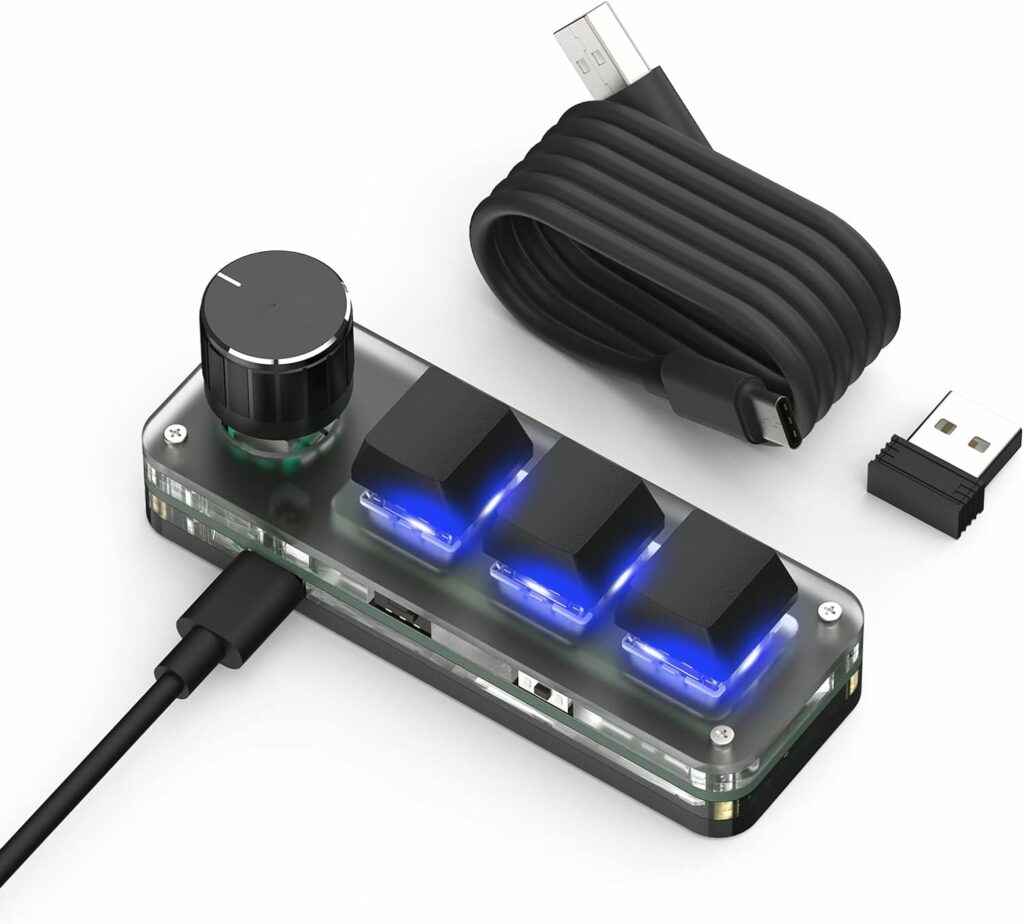
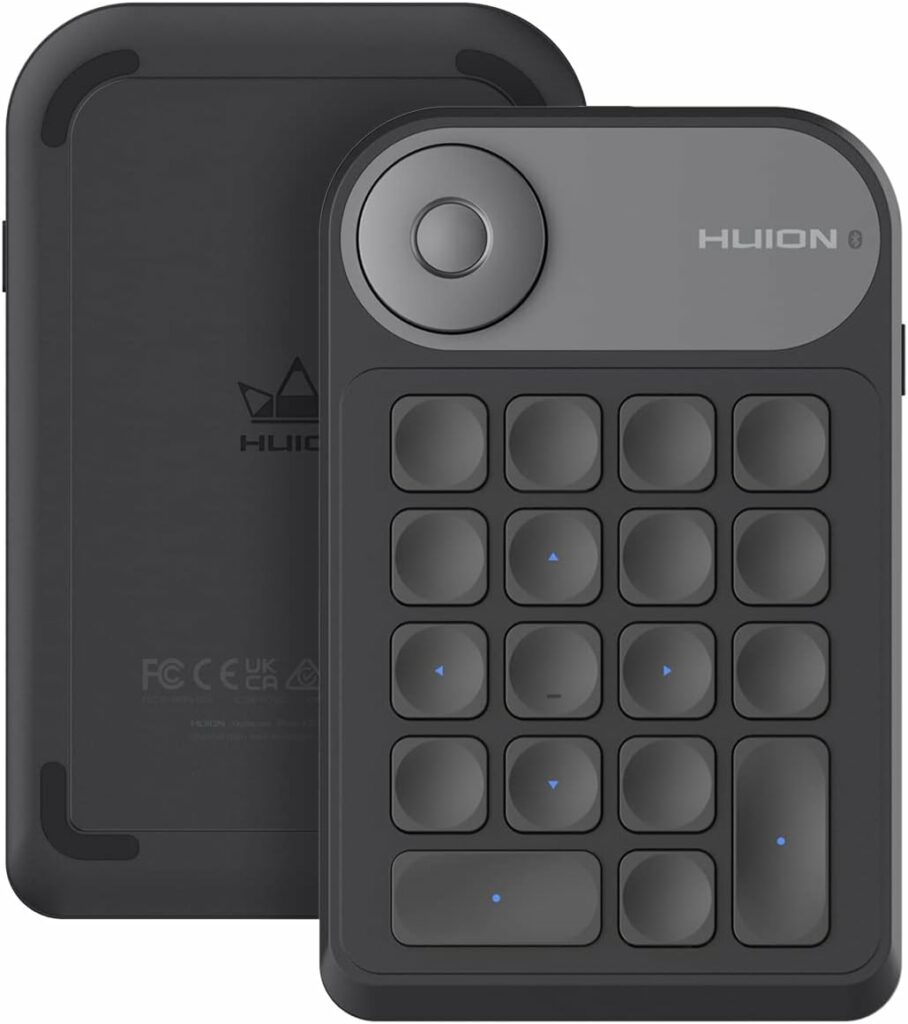
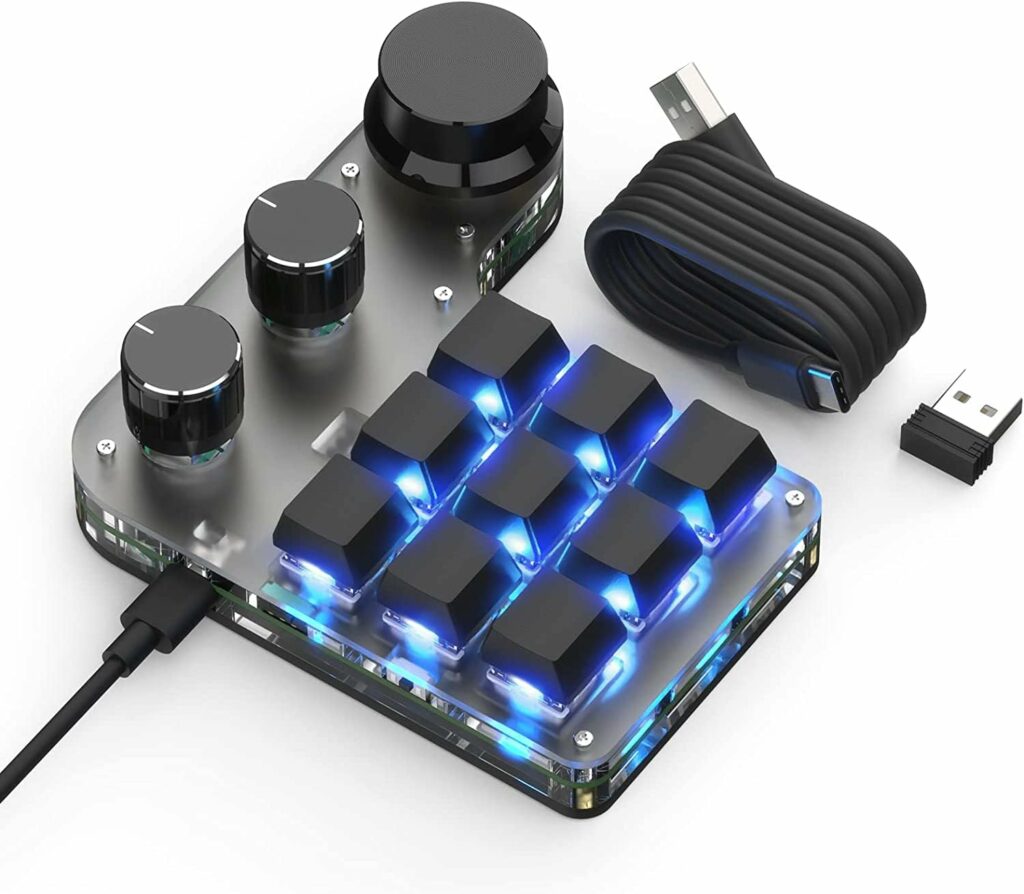
As developers, we start and switch a lot between common developer applications each day. You can buy some external hardware keyboards to achieve this, like for example with these USB Mini 3-Key Keypad, or the HUION Keydial, 9-Keys USB Mini Keypad, Programming Macro Pad. Check the exact model’s setup requirements before buying: the linked BRIMFORD listing currently specifies Windows for customization. A keypad that sends shortcuts to a Mac may still need a different computer to configure it.
macOS Shortcuts
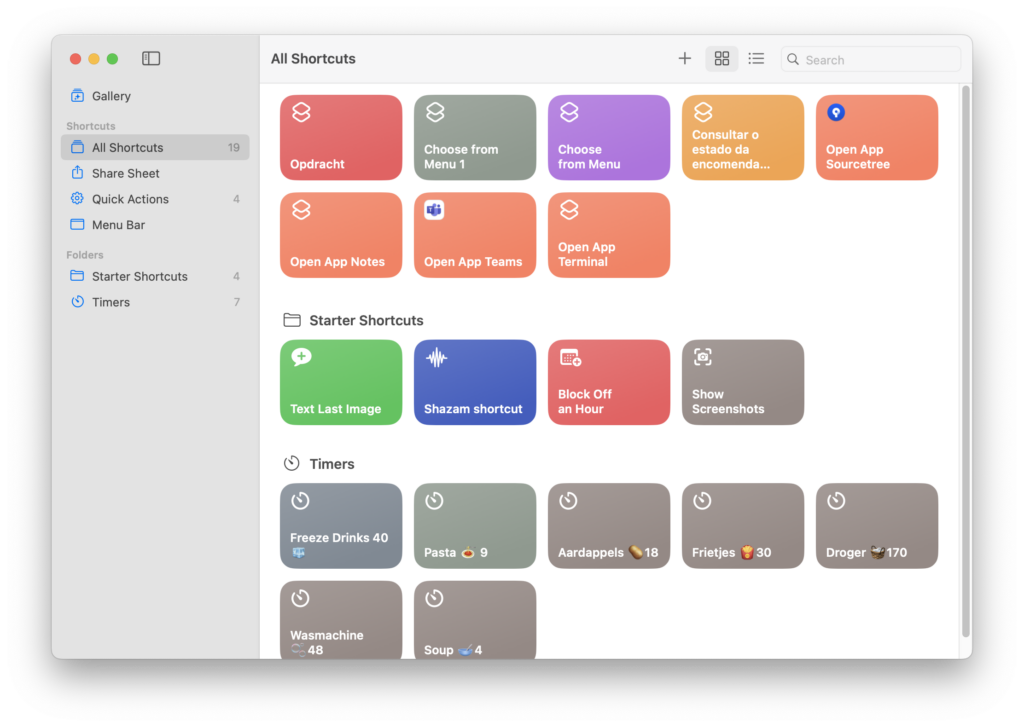
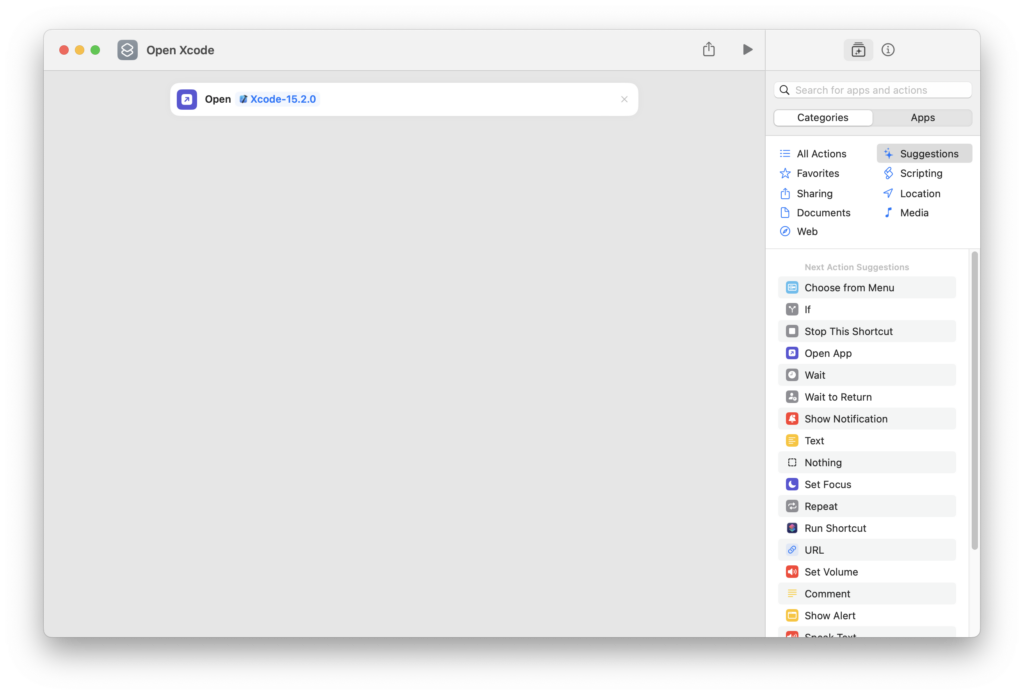
Personally I have the Huion, and use it for general Xcode keyboard shortcuts — like show / hide panes, delete current line, Run, Stop, etc, and to save keys I use macOS Shortcuts to launch applications like Xcode.
To achieve this do the following:
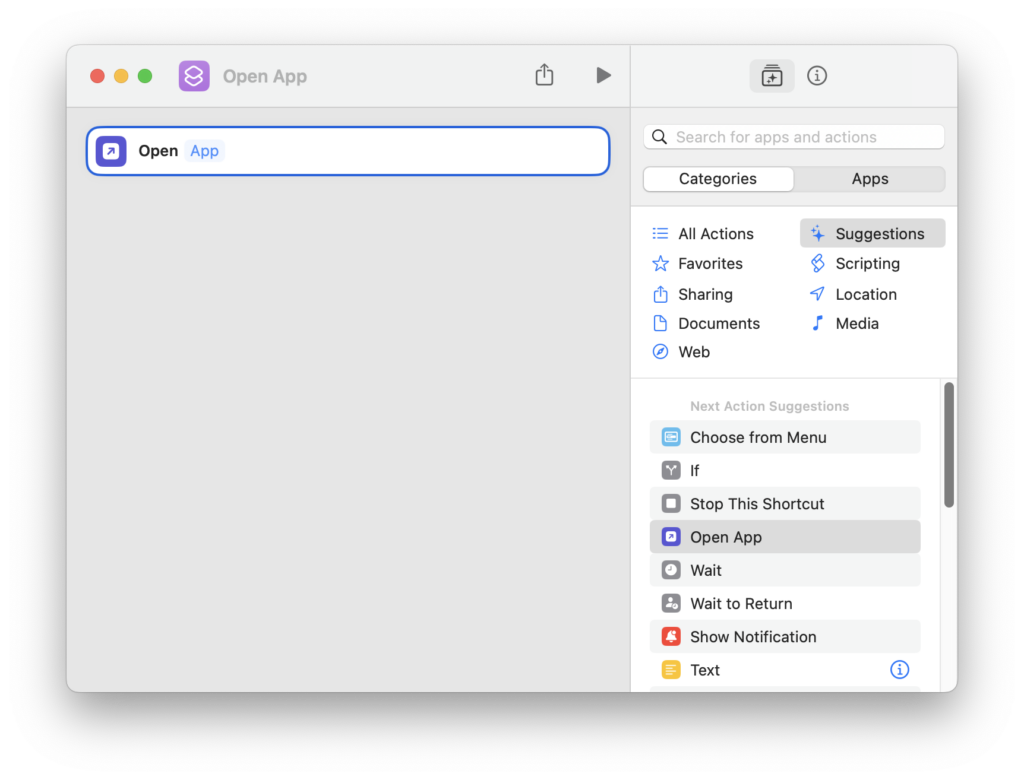
- open Shortcuts
- tap on the + in the title bar
- In the categories tab on the right, select Open App, and drag it on the canvas
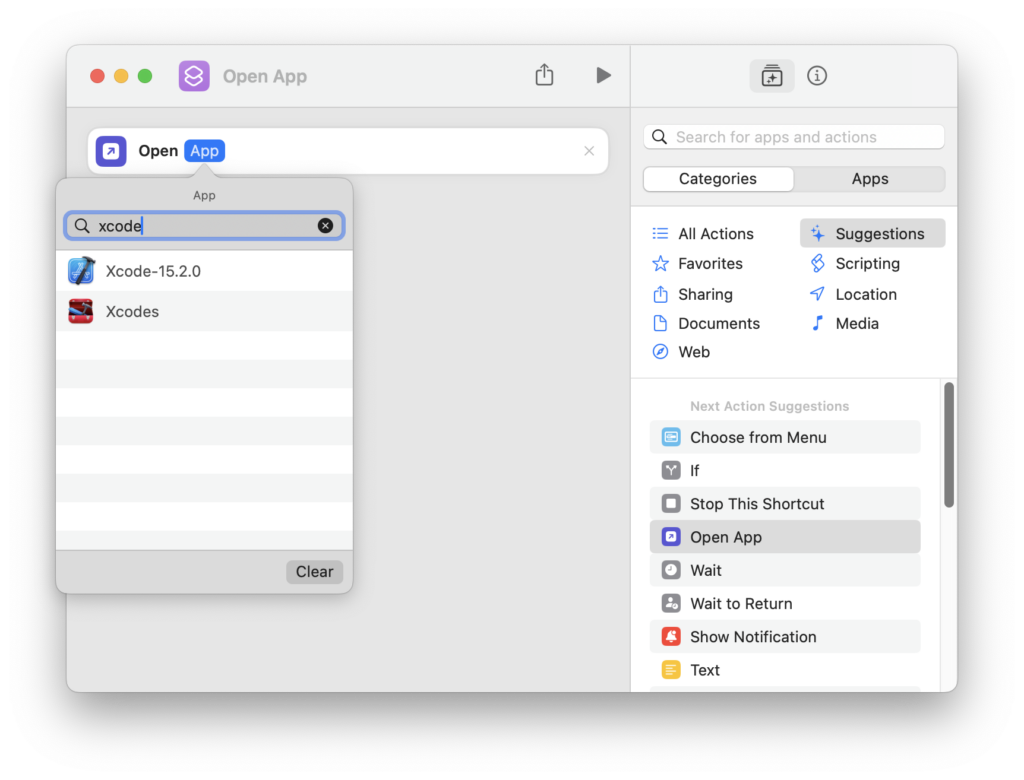
- Click on App, to select Xcode
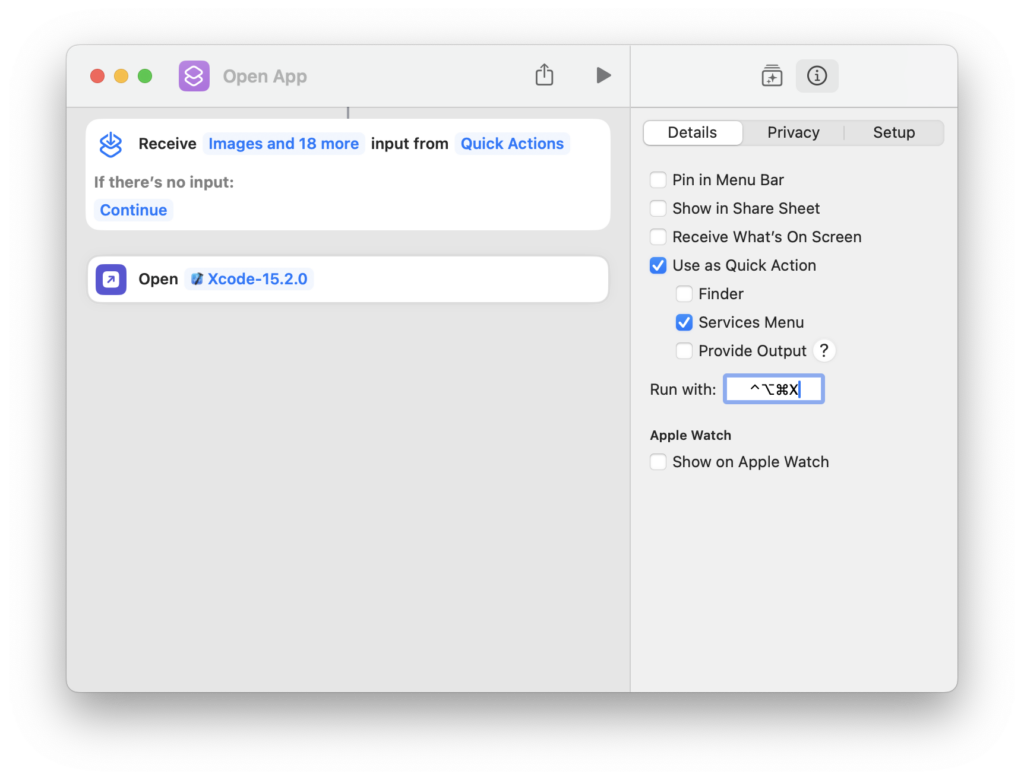
- Click on the info circle top right > Add keyboard shortcut > Control+Option+Command+x
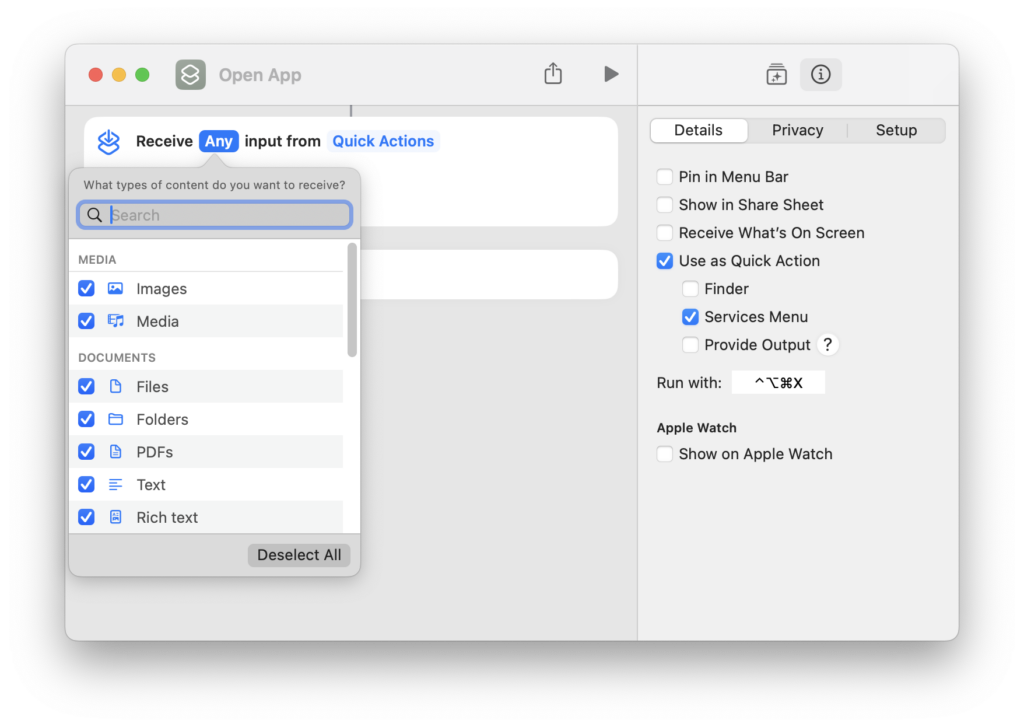
- If you see on the canvas, Receive input from, deselect all
- Tap on the default name in the title: Open App, to change it to Open Xcode, and you can optionally assign an icon, but this is not really needed.
- Now comes the confusing part, there is no save, you just close this window with the red x
- Close Shortcuts
- Test by tapping Control+Option+Command+x
Other Dev tools
Now you can repeat this process for your most common developer tools like SourceTree, Interactful, Slack, enjoy!